Newsletter · claude
Make your first skill.
Turn the instructions you paste into Claude every day into a skill that does the job your way:

Every morning, the same ritual.
You open Claude.
You paste the same long block of instructions.
You explain the format again. The tone. The headings. The thing it got wrong yesterday.
Then you correct the same mistakes.
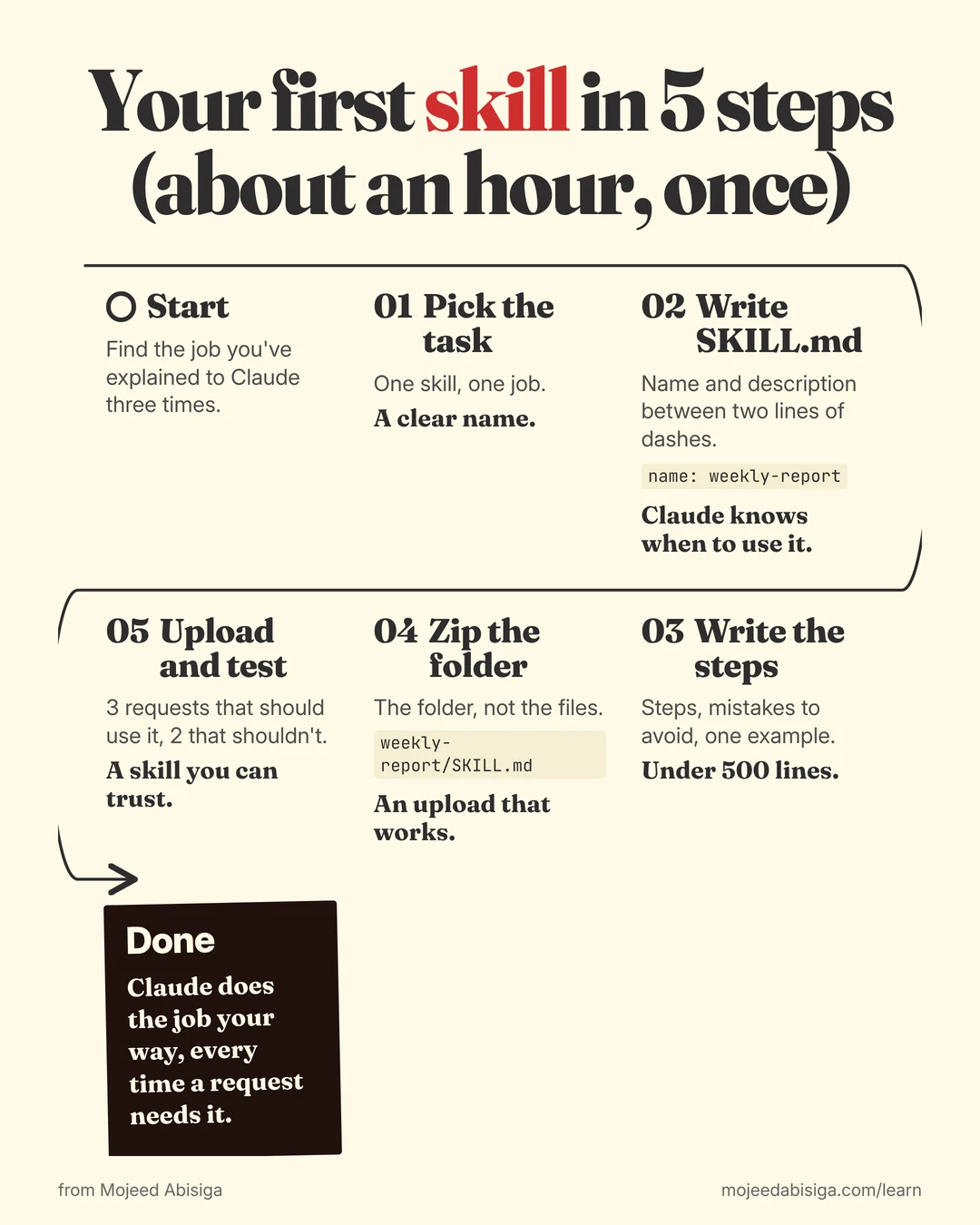
There's a better way, and it takes about an hour, once.
You teach Claude the job one time, in a skill. From then on, Claude picks it up by itself whenever a request needs it.
No pasting. No re-explaining. Your way, every time.
Here's everything you need to make your first one:
- Know when a task deserves a skill
- Pick the right first task
- Understand what's inside a skill
- Write the SKILL.md, and the line that matters most
- Write the instructions
- Add templates and scripts (only if you need them)
- Zip it the right way
- Upload it and test it with five requests
- Fix it when Claude doesn't use it
Get the next one in your inbox
One practical guide at a time: the exact steps, the prompts to copy and the mistakes to skip.
Free. Delivered by Substack, one click to unsubscribe. Form not showing? Subscribe on Substack.
Know when a task deserves a skill
Not everything should be a skill.
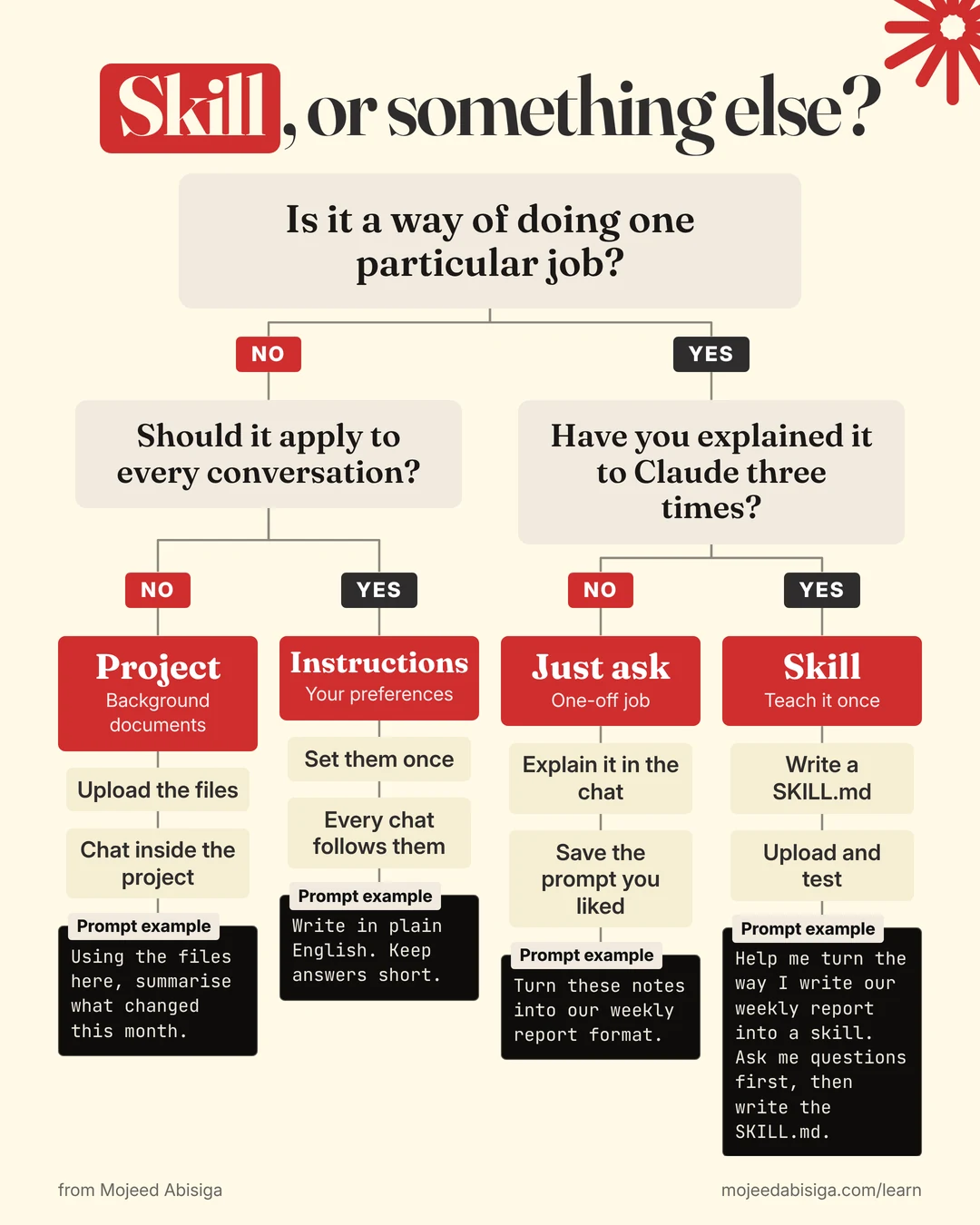
Claude already gives you three other ways to shape how it works. Each one fits a different need:
- Custom instructions hold your general preferences. They apply to every conversation.
- Projects hold background documents and knowledge. They apply to the chats inside that project.
- Connectors give Claude access to other apps and data, such as your drive or calendar, when it needs them.
- A skill is a way of doing one particular job. It applies only when a request needs it, in any chat.
My rule is simple.
Once you've explained the same thing to Claude three times, make it a skill.
Once is a one-off. Twice is a coincidence. Three times is a job, and jobs deserve skills.
Not sure what a skill is? Start with the guide
Pick the right first task
Your first skill should be boring.
That's a compliment. Boring jobs are the ones you repeat, and the ones you repeat are where a skill pays off fastest.
Good first tasks
- The weekly report your manager expects in a fixed format.
- The summary you write after every client meeting.
- The email you send in your team's tone, again and again.
- The checklist you run before you send anything important.
Tasks to leave for later
- A job you do once a quarter. You won't remember to use it.
- A job that is really three jobs. Split it, or the skill will do all three badly.
- A job you can't describe yet. If you can't explain it to a colleague, you can't explain it to Claude.
One skill, one job. If you need two jobs, make two skills.
Throughout this issue, I'll use one example: a weekly report.
Understand what's inside a skill
A skill is just a folder.
It has one required file, SKILL.md, and a few optional ones:
weekly-report/
├── SKILL.md        required: name, description and instructions
├── reference.md    optional: detail Claude reads only when it needs it
├── templates/      optional: files to fill in
└── scripts/        optional: code for steps that must be exact
That's the whole thing. No app to build. No code to write, unless you want to.
Why you can have many skills
Skills load in layers.
- Always: Claude sees just the name and description of every skill you've switched on. A line or two each.
- When a request matches: Claude reads that skill's instructions.
- Only if needed: it opens the extra files. Scripts run, and only their results come back.
So ten skills don't slow Claude down. Each one costs a line or two until the moment it's needed.
Write the SKILL.md
Make a folder named after your skill: weekly-report.
Inside it, make a file called SKILL.md. It starts with a name and a description, between two lines of dashes:
---
name: weekly-report
description: Turns the week's notes and numbers into our team's weekly report format. Use when someone asks for the weekly report or pastes weekly updates.
---
The name
- Lowercase letters, numbers and hyphens only.
- 64 characters at most.
- The same as the folder's name.
- It can't contain "claude" or "anthropic".
The name is also the command you can type, like /weekly-report.
The description: the line that matters most
Claude decides when to use your skill from the description alone.
Write it badly, and your skill sits there unused. Write it well, and Claude reaches for it at the right moment, every time.
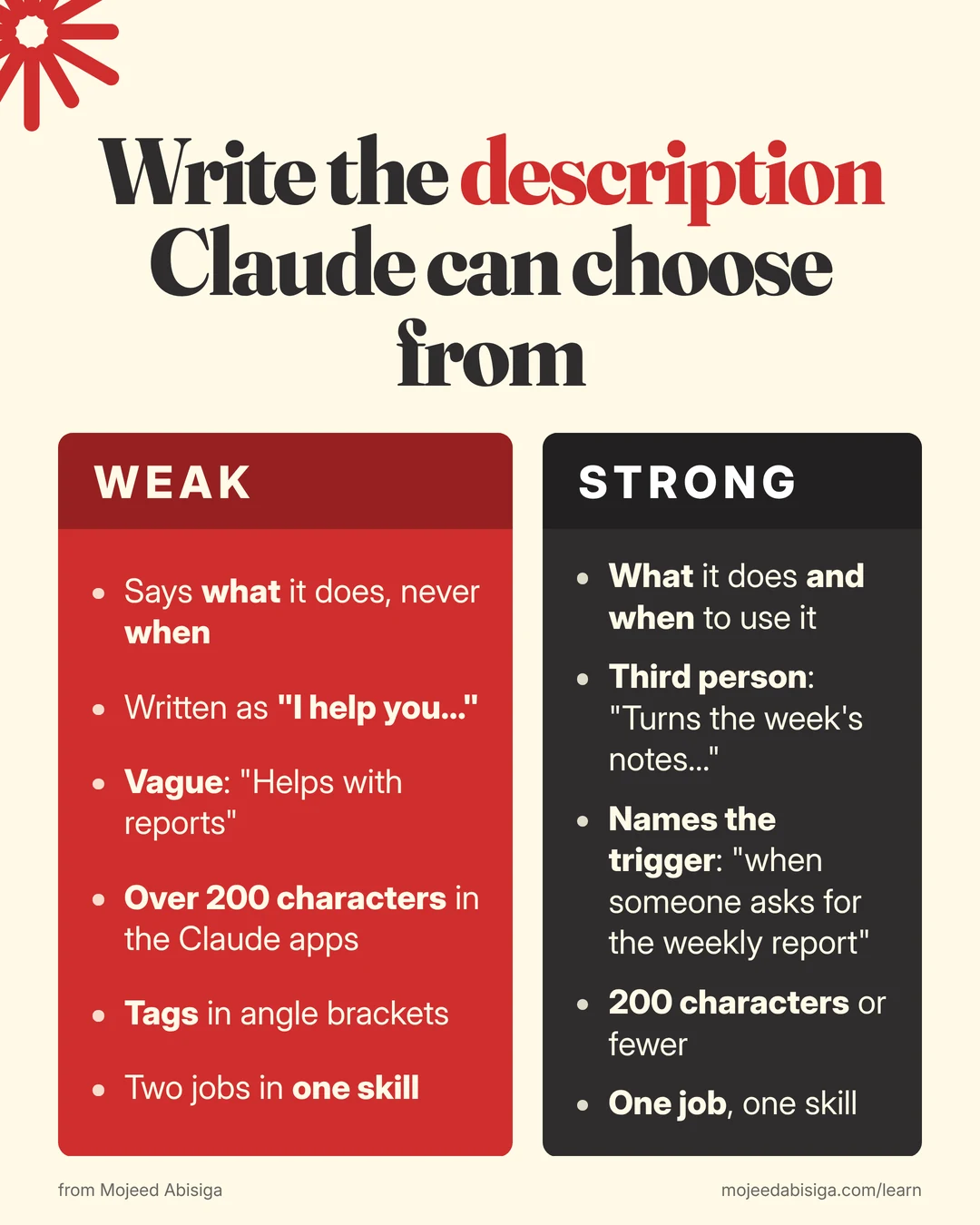
A strong description does two things:
- Says what the skill does.
- Says when to use it.
Write it in the third person ("Turns the week's notes...", not "I help you..."). Keep it to 200 characters in the Claude apps (the API allows 1,024). No tags in angle brackets.
Compare these two:
Helps with reports.Turns the week's notes and numbers into our team's weekly report format. Use when someone asks for the weekly report or pastes weekly updates.The first one could mean anything. The second one tells Claude exactly when to step in.
Get the next guide by email
One practical guide at a time: the exact steps, the prompts to copy and the mistakes to skip.
Free. Delivered by Substack, one click to unsubscribe. Form not showing? Subscribe on Substack.
Write the instructions
Below the dashes comes the job itself.
Write it the way you'd brief a sharp new colleague on their first day. Keep it under 500 lines, and include four things:
- Numbered steps. What to do, in order.
- The mistakes to avoid. The ones Claude made last time.
- One short example. A good finished result.
- A checklist, if the job is long.
Here's how the weekly report skill could start:
## Steps
1. Read the notes and numbers I paste.
2. Group them under: Wins, Numbers, Risks, Next week.
3. Keep each point to one line.
4. Put the three numbers that changed most at the top of Numbers.

## Mistakes to avoid
- Don't invent numbers. If one is missing, write [missing].
- Don't add a greeting or a sign-off.

## Example
(paste one report you were happy with)Let Claude draft it with you
Don't want to start from a blank page? Ask Claude to interview you first:
Help me turn the way I write our weekly report into a skill. Ask me questions first, then write the SKILL.md.Answer its questions honestly. Then read what it writes, and change anything that isn't how you work.
Add templates and scripts, only if you need them
Most first skills are a single file. That's fine.
Add more only when the job needs it:
- reference.md for detail Claude should read only sometimes, like a style guide.
- templates/ for files to fill in, like a report layout.
- scripts/ for steps that must come out the same every time: calculations, format checks, conversions.
Link each extra file from SKILL.md, and say when to read it. For example: "For the client list, read reference.md."
Zip it the right way
This is where most first uploads fail.
Zip the folder, not the files inside it.
The zip must contain weekly-report/SKILL.md. If the files sit at the top of the zip without their folder, the upload won't work.
- On a Mac: right-click the folder, then Compress.
- On Windows: right-click the folder, then Send to → Compressed (zipped) folder.
Right-click the folder, not the files inside it. Then upload the zip as it is. Don't unzip it.
Upload it and test it
Turn skills on
In Claude, open Settings → Capabilities and turn on Create and edit files. In the older layout, it's called Code execution and file creation.
On Team plans, skills are on by default. On Enterprise plans, an owner turns them on first.
Upload
- Open Customize → Skills.
- Click +, then Create skill → Upload a skill.
- Choose your zip.
- Check that the skill's switch is on.
Test it with five requests
This is the step everyone skips. Don't.
- Write three requests that should use the skill.
- Write two that shouldn't.
- Try all five.
Should use it:
1. Here are this week's notes. Write the weekly report.
2. Turn these updates into the report for Friday.
3. Weekly report please: [paste notes]

Shouldn't use it:
4. Summarise this article for me.
5. Write a thank-you email to a client.
All five behaved? You're done.
Save this checklist: the skills guide
Fix it when Claude doesn't use it
Claude ignored your skill? Or used it when it shouldn't have?
Fix it in this order:
- Check the switch in Customize → Skills. It's off more often than you'd think.
- Name it in your request: "Use my weekly-report skill on these notes."
- Rewrite the description. It's what Claude uses to choose. Make the "when" more specific.
Then run your five requests again.
One more shortcut
On a Mac, Cowork can record you doing a task and propose a skill from it, on Pro, Max and Team plans.
What to do today
Open the last chat where you pasted your usual instructions.
Copy them into a SKILL.md.
Give it a name and a description that says what and when.
Zip the folder. Upload it. Run the five requests.
That's your first skill. The second one will be faster.
NewsletterTen skills worth writing.The ten Claude skills I wrote for the people I teach: what each one does, why it works, and a request to try:Send this to one colleague who still pastes the same prompt every morning.
Mojeed