Guides · Claude
Better slides, less effort.
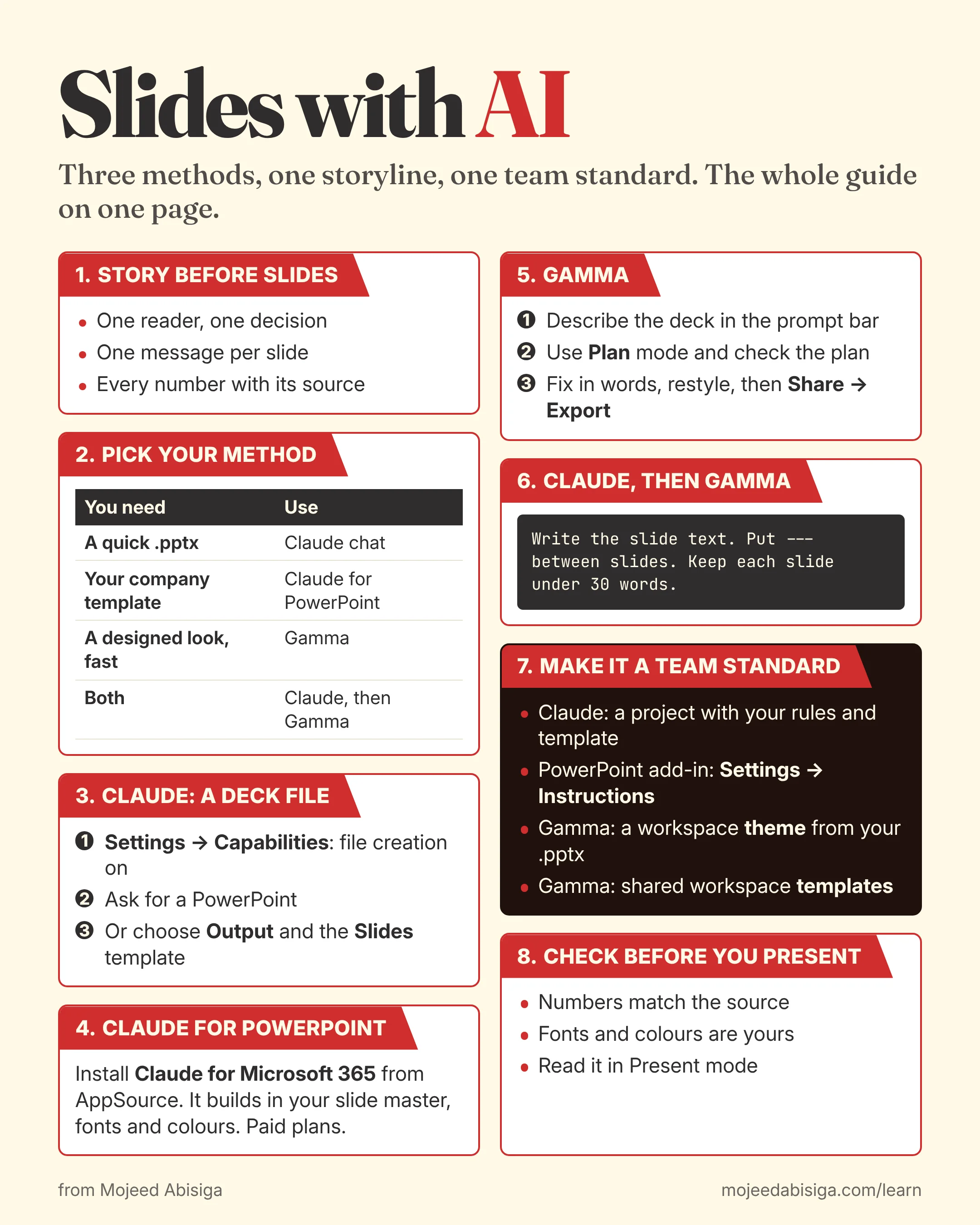
Three ways to build a deck with AI, and how your team can share one standard:

Contents
You have a presentation due.
You have the content. Notes, a report, a few numbers.
What you don't have is three hours to push boxes around in PowerPoint.
AI can do most of that work now. But only if you use it the right way.
Ask for "a deck about Q3" and you get ten slides of generic bullets. Give it a real storyline and the right tool, and you get a draft worth editing.
I teach people to use AI at work, and my mission is to make data and AI easy for everyone. This guide is the method I'd show anyone who builds slides for a living, or just once a month.
By the end of this guide you'll have:
- a storyline prompt that makes every method work better
- method 1: a deck from Claude, as a file, a Slides artifact or inside PowerPoint
- method 2: a deck from Gamma's agent
- method 3: the words planned in Claude, the design built in Gamma
- one standard your whole team can reuse
You need: a Claude account (Free works for methods 1 and 3), a Gamma account (Free works to start), and the content for one real presentation.
Get the next one in your inbox
One practical guide at a time: the exact steps, the prompts to copy and the mistakes to skip.
Free. Delivered by Substack, one click to unsubscribe. Form not showing? Subscribe on Substack.
1. Get the story straight first
Most bad AI decks have the same cause.
The tool was asked to design and think at the same time.
So split the jobs. First decide what the deck says. Then let a tool make it look good.
A good storyline answers four questions:
- Who is in the room? One kind of reader, not "everyone".
- What should they do after? Approve, decide, learn, buy.
- What's the one message? If they remember one line, which one?
- What's the proof? The numbers and examples, each with its source.
You don't have to answer these alone. Ask Claude to interview you.
I need to build a presentation. Before writing any slides, interview me.

Ask me one question at a time about:
- who the audience is and what they already know
- what I want them to do after the presentation
- the one message they should remember
- the evidence I have (I'll paste numbers and notes)
- how long I have to present

When you have enough, give me a storyline: a title, then one line per slide stating that slide's single message. Aim for 8 to 12 slides. Don't design anything yet.
Read the storyline out loud. If a slide's line doesn't push toward the one message, cut it.
2. Pick your method
There's no single best tool. There's the best tool for this deck.
| Claude: deck file or Slides | Claude for PowerPoint | Gamma | Claude, then Gamma | |
|---|---|---|---|---|
| Best for | A fast first draft from notes or a report | Decks that must use your company template | A designed look with little effort | Strong words and a strong design |
| Where you work | A Claude chat | Inside PowerPoint | Gamma, in your browser | Claude for words, Gamma for design |
| What you get | A .pptx file, or a Slides deck you can export | Slides in your own master, fonts and colours | A gamma you can present, share or export | A Gamma deck with your exact wording |
| Plan you need | Claude Free works | A paid Claude plan | Gamma Free to start | Both free plans to start |
A simple rule:
- Your company has a PowerPoint template? Use Claude for PowerPoint.
- You need it to look designed, and fast? Use Gamma.
- The words matter most? Plan in Claude, build in Gamma.
- You just need a quick .pptx? Ask Claude in a chat.
Not sure which AI suits a job? Read this
3. Method 1a: Ask Claude for a deck file
This is the quickest route, and it works on the Free plan.
Claude can make PowerPoint (.pptx), Word, Excel and PDF files right in a conversation. You download the file, or save it straight to Google Drive. (Anthropic's help page.)
Anthropic's built-in skills handle PowerPoint creation, and Claude uses them on its own when a request needs them.
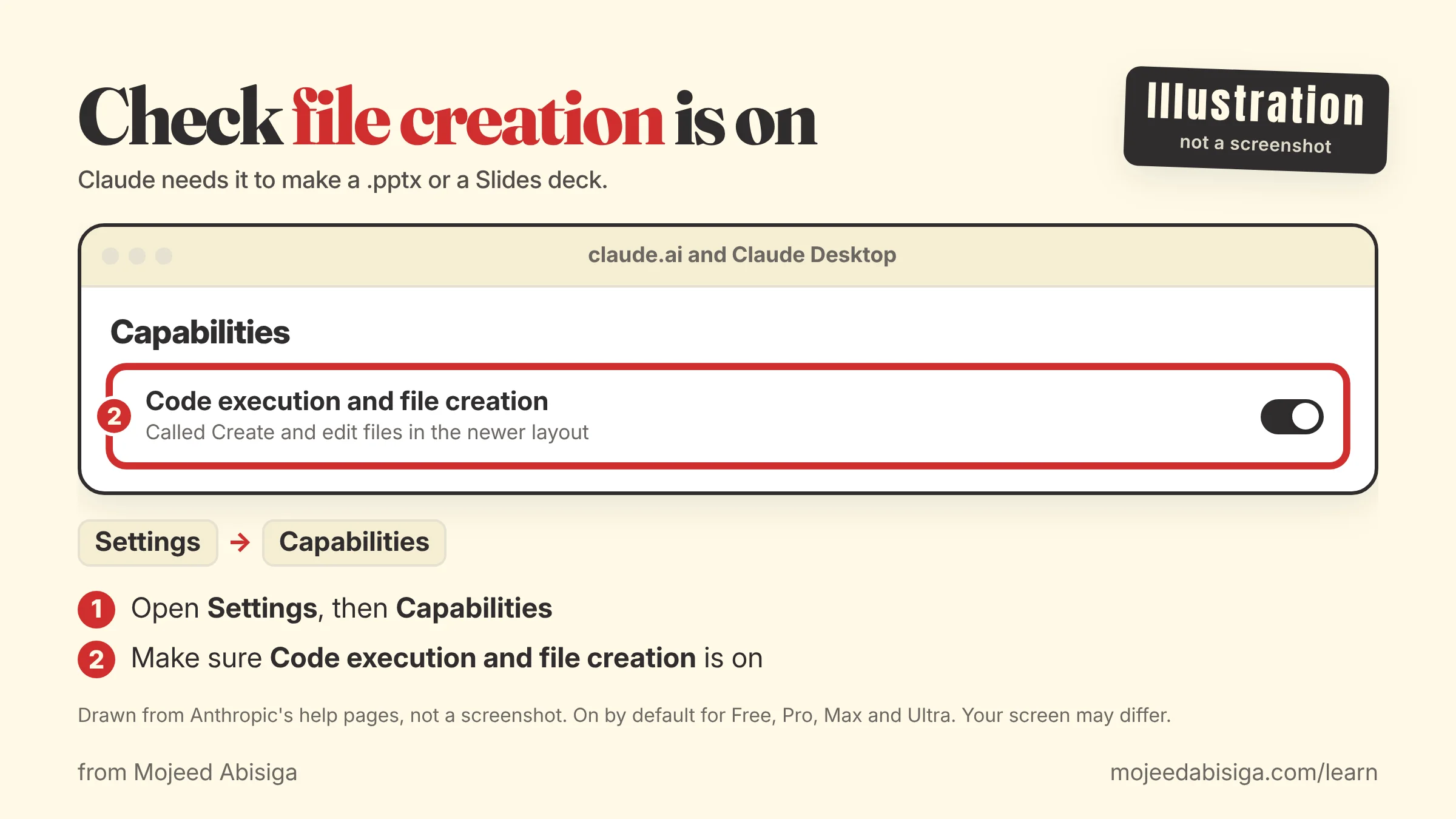
Step 1: Check file creation is on
It's on by default for Free, Pro, Max and Ultra. Check once anyway.
Open Settings, then Capabilities. Make sure Code execution and file creation is switched on. In the newer layout, the help page says it's called Create and edit files.
Step 2: Give it your storyline and your content
Paste the storyline from section 1, then your notes, or attach your report. Files can be up to 30MB each.
Turn this storyline into a PowerPoint presentation (.pptx). Follow these rules.

- One message per slide. Use the storyline line as the slide title, written as a full sentence.
- No more than 30 words of body text per slide.
- Where I give numbers, make a simple chart instead of a bullet list.
- Use only the facts in my notes. If something is missing, leave a clear placeholder like [ADD FIGURE].
- Add speaker notes to each slide with what I should say.
- Use a clean, plain design: white background, one accent colour.

Storyline:
[paste the storyline]

Notes and numbers:
[paste or attach]
Step 3: Fix it in words
Open the file. Then tell Claude what to change, one thing at a time.
"Slide 4 has too much text. Split it into two slides." "Make the chart on slide 6 a bar chart."
Each change gives you a new file to download.
4. Method 1b: Use Claude's Slides template
Claude can also build a deck you work on right inside Claude.
It's called an artifact: something Claude makes that you'd put in front of someone. It opens beside your conversation. Slides is one of the templates, and it's on every plan, Free included. (Anthropic's page on artifacts.)
There are three ways to start one:
- Ask for a presentation in any chat.
- Select Output in the message box and choose the Slides template.
- Pick it in the Artifacts tab.
Slides are built from your notes, your reports or the work already in your chat. So the storyline you wrote in section 1 can become the deck in the same conversation.
Use the Slides template to turn the storyline above into a presentation.
Keep my slide titles exactly as written. Keep body text short.
Use the numbers I pasted earlier, and nothing else.
What you can do with it:
- Edit slide by slide, by asking Claude or by typing on the slide yourself.
- Present it without leaving Claude.
- Export it: click Export to get PowerPoint or PDF, or send it straight to Google Slides as an editable file.
Learn to brief Claude properly
5. Method 1c: Build inside PowerPoint
If your company has a template, this is the method to learn.
Claude for PowerPoint is an add-in that works inside PowerPoint itself. It reads your deck's slide master, layouts, fonts and colour scheme, and uses them when it makes or edits slides. (Anthropic's docs.)
It can build slides in your templates, make pinpoint edits to one slide, and turn bullets into diagrams and native PowerPoint charts. Those charts stay editable. They aren't pictures.
Who can use it
You need a paid Claude plan. The PowerPoint docs name Pro, Max, Team and Enterprise. Pro costs $20 a month, or $17 a month paid yearly. (Claude's pricing.)
You also need a recent PowerPoint:
- Windows: PowerPoint with a Microsoft 365 subscription, build 16.0.13127.20296 or later
- Mac: PowerPoint version 16.46 or later
Step 1: Install it
- Find the Claude for Microsoft 365 listing on Microsoft AppSource and select Get it now.
- Open PowerPoint.
- Activate the add-in: Home → Add-ins on Windows, Tools → Add-ins on Mac.
- Sign in with your Claude account.
Step 2: Start from your template
Open a blank deck that uses your company template. Then describe your goal.
Claude builds a draft with a logical structure, in your template. You refine it from there.
Build a presentation in this template from the storyline below.
Use the existing slide layouts. Don't change fonts or colours.
One message per slide, with the message as the slide title.
Turn any list of numbers into a native chart.

Storyline:
[paste the storyline]
Step 3: Make pinpoint edits
Select a slide and ask for one change.
On this slide only: turn the bullets into a simple diagram that shows the three steps in order. Keep the title as it is.Get the next one in your inbox
One practical guide at a time: the exact steps, the prompts to copy and the mistakes to skip.
Free. Delivered by Substack, one click to unsubscribe. Form not showing? Subscribe on Substack.
6. Method 2: Let Gamma build it
Gamma is a separate tool made for presentations, documents and webpages.
You start with a conversation with its agent. You describe what you want, it asks a few questions, shows you a plan, then builds the whole deck: writing, design and images. (Gamma's help page.)
Step 1: Describe the deck
From your Gamma dashboard, type what you want in the prompt bar. A sentence is enough, but more helps. You can paste notes, attach files or choose a template.
A 10-slide presentation for our leadership team.
Goal: get approval to run a three-month pilot.
Audience: busy senior managers who want the cost, the risk and the decision.
Tone: plain and confident, no jargon.
Use my notes below for every fact and number. Don't add statistics of your own.

[paste notes]
Step 2: Choose a mode
Before you generate, pick a mode in the mode picker:
- Plan (the default): the agent asks questions and waits for your go-ahead on its plan.
- Express: it skips the questions and goes straight to a draft.
- Research: it reads sources from the web first. It's on Pro and above, uses more credits, and only works with Plan.
Use Plan for anything that matters. Short on time? Choose Decide for me on any question.
Step 3: Check the plan
The plan covers the story, the style and the look. This is the best moment to fix things, before anything is built.
Compare it with your storyline. Move, add or cut slides here.
Step 4: Fix it in plain words
When the deck is built, tell the agent what feels wrong, in your own words:
- "Slide 4 is too text-heavy. Make it more visual."
- "Make the tone more formal."
- "Tighten the summary slide."
Or edit by hand. Move, resize and rewrite directly.
Like the words but not the look? Ask for a new look. The agent offers a few style directions and restyles the deck in place. Your content stays.
Step 5: Export it
Click Share at the top right, then Export. Or use the three-dot menu, then Export. (Gamma's export page.)
You can export to PDF, PNG, PowerPoint or Google Slides. Choose All cards to export the whole deck. Tables arrive in PowerPoint as real, editable tables.
What it costs
Gamma's plans are Free, Plus, Pro, Ultra and Business. Every AI action uses credits: creating a deck, making images, asking the agent for edits. (Gamma's plans page.)
| Plan | What the help page lists |
|---|---|
| Free | The AI agent, basic image models, up to 10 slides per prompt. Credits don't refresh (200 per referral, up to 2,000). |
| Plus | 1,500 credits a month, up to 100 slides per prompt, no "Made with Gamma" badge |
| Pro | 4,000 credits a month, password protection, headers and footers, viewer analytics |
| Ultra | 20,000 credits a month |
Unused credits roll over, up to double your plan's amount. Gamma bills per user.
Gamma's help page doesn't list prices, so check the current price on Gamma's own pricing page before you upgrade.
7. Method 3: Plan in Claude, build in Gamma
This is the method for decks where every word counts.
Claude does the thinking and the writing. Gamma does the design. You keep control of both.
Step 1: Write the slide text in Claude
Start from your storyline in section 1. Then ask Claude for the finished words, in a format Gamma understands.
Gamma treats three dashes (---) as the start of a new slide. So ask Claude to use them.
Write the final text for each slide of this storyline.

Format:
- Start each slide with its title as a full sentence.
- Then at most 3 short lines of body text, or one number with a one-line explanation.
- Put a line with three dashes (---) between slides.
- No slide over 30 words.
- Use only the facts in my notes. Mark anything missing as [ADD].

Storyline:
[paste the storyline]

Notes:
[paste notes]
Read every slide now. This is the cheapest moment to fix a fact or a weak line.
Step 2: Paste it into Gamma, word for word
Paste the text into Gamma's prompt bar. Then tell the agent to keep your words. (Gamma's page on creating.)
Keep my wording exactly as written and make one slide per section. Sections are separated by ---. Design each slide around its single message. Add images only where they help the message.In Gamma's classic generator, the option is called Preserve this exact text. Want to add your own pictures later? Choose Image placeholders. Want none? Choose Don't add images.
Step 3: Restyle, then export
Now ask the agent for a new look until one fits. The words stay where they are.
Then export to PowerPoint, PDF or Google Slides, as in section 6.
NewsletterOne good prompt.Getting bland, generic answers? Five rules and one template that fix them:8. Make it a team standard
One person with a good method makes good slides.
A team with a shared standard makes slides that all look like one company made them.
Here's how to set that up in each tool.
In Claude: a project for decks
A project is a workspace with its own chats, instructions and files. To make one, go to claude.ai/projects and click + New Project. Add files with + and rules with Set project instructions. (Anthropic's projects page.)
For a whole team, Claude's Team plan has Standard seats at $20 per seat a month paid yearly, or $25 monthly, for teams of 2 to 150.
You help our team build presentations.

Always:
- Start by asking who the audience is and what decision we want.
- Write a storyline before any slides: one message per slide.
- Use slide titles that are full sentences.
- Keep body text under 30 words per slide.
- Use only facts from the files and notes we give you. Mark gaps as [ADD].
- Add speaker notes.

Brand:
- Colours: [your colours]
- Fonts: [your fonts]
- Tone: [e.g. plain, confident, no jargon]
Once the rules are stable, you can turn them into a skill: a folder of instructions Claude loads when a request needs it. Teammates upload the same zipped folder: Customize → Skills, then +, + Create skill and Upload a skill.
In Claude for PowerPoint: shared instructions
Each person opens Settings in the add-in sidebar and fills in the Instructions field. Those rules apply to every conversation in PowerPoint.
Paste the same short rules for everyone. Your template does the rest, because Claude reads the slide master.
In Gamma: a theme, templates and instructions
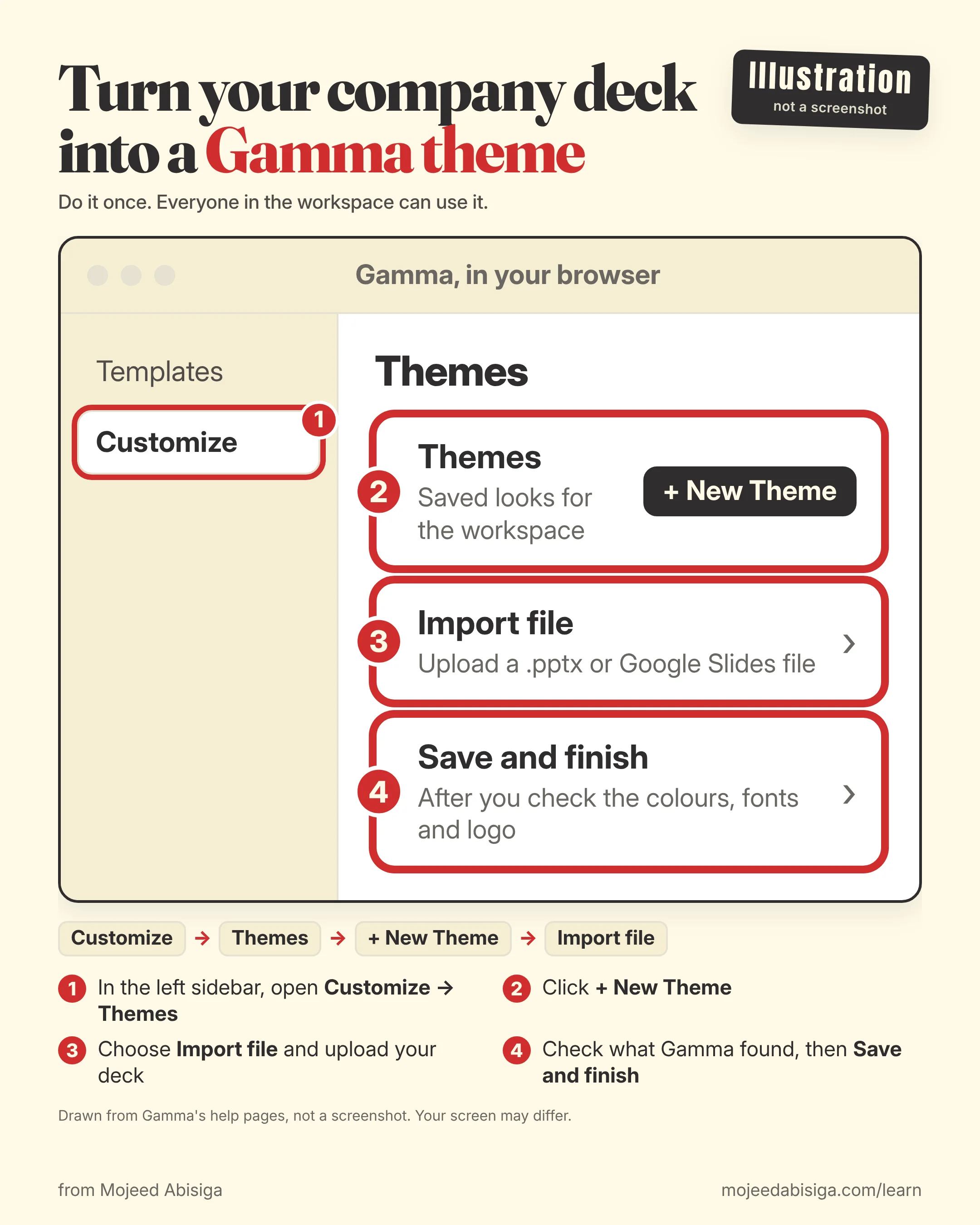
1. A workspace theme from your company deck. A theme is a saved look your whole workspace can use: colours, fonts, logo. (Gamma's themes page.)
In the left sidebar, go to Customize → Themes. Click + New Theme, then Import file, and upload your .pptx or Google Slides file. Check the colours, fonts and logo Gamma found, then click Save and finish.
2. Workspace templates for decks you make often. Any gamma can become a template, on every plan including Free. Open the Templates tab in the left sidebar, click + Add a gamma, choose one and click Save copy as template. Teammates hover over it and choose Use template. (Gamma's templates page.)
3. Instructions inside the template. On Pro and Ultra, you can add template instructions: rules for the AI that travel with the template, and locks on slides it must not change. They aren't available on Team or Business plans yet. (Gamma's page.)
On the Enterprise plan, admins can also set workspace custom instructions in Customize → Custom Instructions, and they apply to everyone's decks. (Gamma's page.)
9. Check before you present
AI makes drafts fast. You still own what goes on the screen.
Before any deck leaves your hands:
- Every number matches its source
- No [ADD] or [ADD FIGURE] placeholders are left
- Each slide has one message, and its title says it
- Fonts, colours and logo are your company's
- Charts show the right numbers on the right axes
- You've read it in present mode, not only in edit mode
- Speaker notes say what you'll actually say
Gamma's exports match what you see in present mode. So check there before you export.
Questions
Which method is cheapest?
Method 1 in a chat, or with the Slides template, works on Claude's Free plan. Gamma's Free plan lets you start, but its credits don't refresh. Method 3 works on both free plans to begin with.
Which method keeps my company template?
Claude for PowerPoint. It reads your slide master, layouts, fonts and colours. In Gamma, import your deck as a workspace theme.
Can I edit the result in PowerPoint?
Yes. Claude makes .pptx files, and Slides exports to PowerPoint. Gamma exports to PowerPoint with editable tables. Claude for PowerPoint works inside PowerPoint already.
Which Claude model should I use for slides?
Anthropic describes Sonnet 5.5 as strongest at well-scoped everyday tasks and creating polished documents, slides and spreadsheets.
What to do today
Pick one presentation you need this month.
- Run the storyline interview in Claude.
- Build the deck with the method that fits it.
- Run the checklist before you present.
Then, if your team makes decks every week, set up the standard in section 8.
Make infographics that stay sharp
GuideClaude skills, from zero.For anyone who pastes the same instructions into Claude every day: install your first skill safely and use it today.Make the story clear, and let the tools do the rest.
Mojeed
Get the next one in your inbox
One practical guide at a time: the exact steps, the prompts to copy and the mistakes to skip.
Free. Delivered by Substack, one click to unsubscribe. Form not showing? Subscribe on Substack.