Newsletter · claude
Right tool, right job.
Stop looking for one AI that does everything. Five everyday jobs, and where to start for each:

You use one AI for everything.
Emails. Reports. Spreadsheets. Research. Slides.
Some days it's brilliant. Some days it's clumsy, and you can't tell why.
Often the problem is the match between the tool and the job.
Each tool is built around different strengths. The companies say so themselves, in their own help pages.
So stop hunting for the one AI that wins at everything.
Pick the right one for each job instead.
I teach people to use AI at work, and this is the question I hear most: "Which AI should I use?"
My honest answer: it depends on the job. Here's where to start for five of them.
Inside:
- One rule before any tool
- Deep work and writing
- Spreadsheets
- Search and research
- Work in other languages
- Presentations
- The whole map on one page
- How to test a tool on your own work
A quick promise: I didn't run a test or a ranking for this issue. Every choice below comes from what each company documents about its own product. Treat each one as where to start, then judge on your own work.
Get the next one in your inbox
One practical guide at a time: the exact steps, the prompts to copy and the mistakes to skip.
Free. Delivered by Substack, one click to unsubscribe. Form not showing? Subscribe on Substack.
One rule before any tool
Here it is:
Start with the tool built around the job, then keep it only if it works on your own material.
That's it. Three things follow from it.
- Where your work lives matters. If your numbers live in Excel, an AI that works inside Excel beats copying and pasting.
- The documented feature matters more than the hype. A tool that says it gives sources, keeps formulas or uses your template is telling you what it was built for.
- Your own test beats anyone's ranking. Including mine.
You don't need five subscriptions for this. Several tools below have free plans, and the free version of this map shows where each free plan stops.
Deep work and writing
Try first: Claude, on Opus 5.5.
This is the long, careful work. A report. A proposal. A difficult email. Making sense of a pile of documents.
Why Claude for this:
- Anthropic's own advice is to start with Opus 5.5 if you're unsure, and it calls it the "strongest daily driver" for knowledge work.
- It's built for clear writing. Anthropic says Opus 5.5 puts the most important information up front, uses less jargon, and follows the writing rules you give it.
- It takes in a lot at once. On paid plans, Opus 5.5 has a 1M-token context window in chat. ChatGPT's published windows run from 27K to 400K, depending on plan and model.
- Projects keep your material in one place, with their own chats and files. Free users can create up to five.
One thing to know: on the Free plan, Claude offers Sonnet and Haiku, not Opus. Opus 5.5 starts on Pro.
To pick it, click the model name next to the send button and choose Opus 5.5, or click More models.
I've attached my notes, the client's brief and last quarter's report.

Write a first draft of a two-page proposal for [client].
Audience: their operations director, who is busy and sceptical.
Put the recommendation and the cost in the first paragraph.
Plain English, short paragraphs, no jargon.

Before you write, list anything in my notes that contradicts the brief, and ask me about it.
The last line matters. It makes Claude check before it writes, instead of guessing.
For quick, well-scoped jobs, Anthropic positions Sonnet 5.5 as strongest at everyday tasks and polished documents. Move down to it when Opus feels slow.
GuideBrief Claude like a new colleague.Short prompts get average answers. A two-minute brief gets the finished thing, first time:Spreadsheets
Try first: whichever AI works inside the spreadsheet you already use.
This is the job where "where your work lives" matters most.
If you live in Excel: Claude for Excel
Claude for Excel is an add-in that works inside your workbook. Anthropic's docs say it:
- answers questions about your workbook with cell-level citations, so you can see where a number came from
- adjusts assumptions while keeping formulas intact
- debugs errors and builds models
It runs on Excel on the web, Windows and Mac. Its docs list Pro, Max, Team and Enterprise plans.
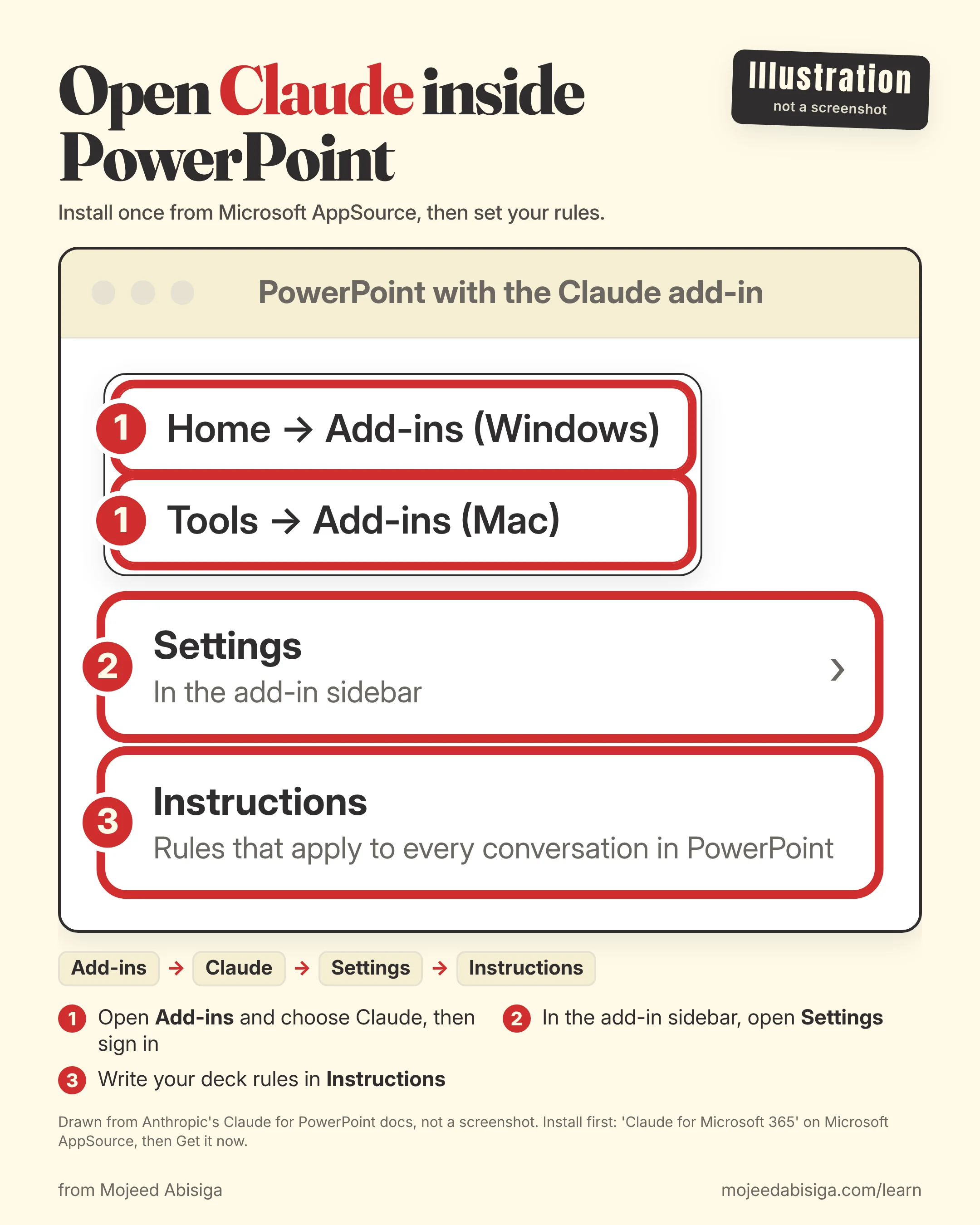
To install it, find the Claude for Microsoft 365 listing on Microsoft AppSource, click Get it now, then sign in with your Claude account.
Look at the Forecast sheet.
Explain in five plain sentences how next year's revenue figure is built, citing the cells you used.
Then change the growth assumption from 8% to 5% and tell me which totals move.
Don't overwrite any formula.
If you want charts from a file: ChatGPT data analysis
ChatGPT's data analysis takes spreadsheets (.xls, .xlsx, .csv) and PDFs, and for some tasks writes and runs Python.
It makes interactive bar, line, pie and scatter charts on Plus and Pro. To see the numbers behind a chart, open Chart options (•••) and choose View as table.
On Free, data analysis is limited.
If your team runs on Google Sheets: Gemini
Gemini with Google Workspace puts AI inside Gmail, Docs, Sheets and Slides. For businesses it starts at $14 a seat per month.
GuideAsk Claude about your data, and trust the answer.Claude will answer any question about your spreadsheet, confidently. Here's how to make sure the answer is right:Search and research
Try first: Perplexity for quick answers with sources. Claude Research or Gemini Deep Research for a full report.
Search has two jobs hiding inside it.
Quick, looked-up answers
Perplexity is built around search. On its Free plan you get practically unlimited basic searches and 3 Pro Searches a day. Pro adds advanced models and 10x as many citations per answer.
Claude can search too. Click + in the message box, then Web search, and the answers come back with citations. Free accounts can use it.
A proper report
When you need many searches that build on each other, use a research mode.
- Claude Research (paid plans) runs multiple searches across the web and your connected tools. Turn it on with + → Research.
- Gemini Deep Research is on Google's Free plan. Google says it can analyse hundreds of sources to write a research report.
Anthropic's own rule of thumb is useful for any tool: web search for a factual question that takes one or two lookups, Research for anything that needs five or more.
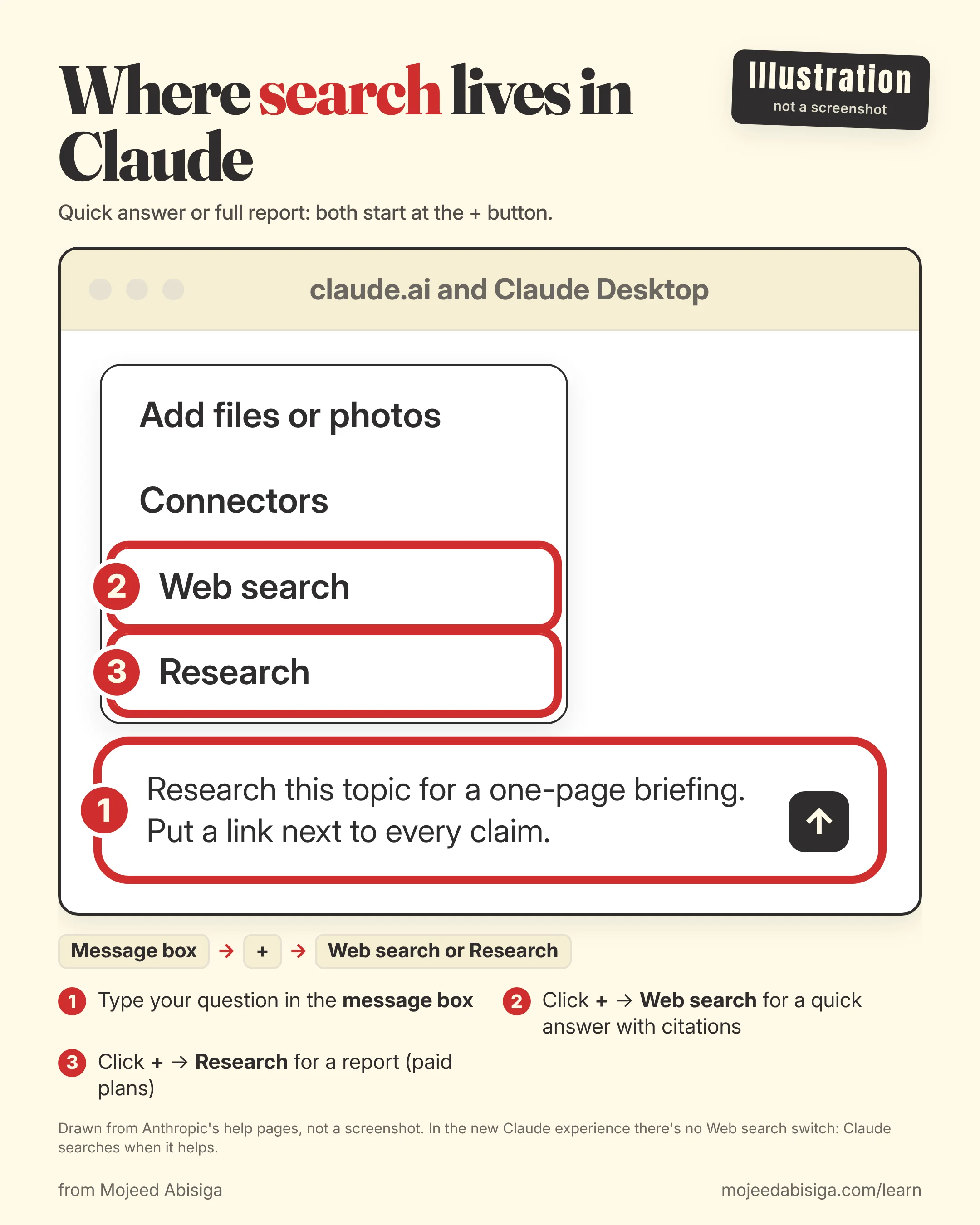
In words: click + in the message box, then Web search for a quick answer, or Research for a report. In the new Claude experience there's no Web search switch: Claude searches when it helps.
Research [topic] for a one-page briefing to my manager.
Use only sources from the last 12 months, and say the date of each.
Give me: what's changed, the three numbers that matter, and what's still disputed.
Put a link next to every claim. If sources disagree, show both.Work in other languages
Try first: Claude for writing and translating. Gemini when you need wide language coverage in the app itself, or text inside images.
Most AI advice assumes you work in English. Plenty of work happens in other languages too.
What Claude documents
Anthropic publishes a multilingual table that scores each language as a percentage of the same model's English score.
For Opus 5.5:
| Language | Score, as % of English |
|---|---|
| Spanish | 99.3% |
| French | 99.3% |
| Arabic | 99.3% |
| Hindi | 99.2% |
| Swahili | 98.3% |
| Yoruba | 96.3% |
Read it the way Anthropic says to: it compares languages within one model, not one model against another.
Anthropic also says Claude works in many languages beyond the table, and that you should test with the ones you actually use.
What Gemini documents
Google says the Gemini web app is available in more than 70 languages, in over 230 countries and territories. The list includes Amharic, Arabic, French, Swahili and Zulu.
Gemini's image tool can also place clear text in images in many languages. Useful for a poster or a social card in your own language.
How to ask, in any tool
Anthropic's tips for multilingual work are simple:
- Name the input language and the output language.
- Paste text in its own script, not spelled out in Latin letters.
- Ask for natural, idiomatic wording, "as if written by a native speaker".
- Say who the reader is and where they live.
Translate the message below from English to French for customers in Senegal.
Use natural, idiomatic French, as if written by a native speaker.
Keep it warm and short. Keep product names in English.
After the translation, list any phrase that might read differently there than in France.

[paste your message]
If you speak the language, read the result yourself. If you don't, ask someone who does before it goes out.
NewsletterWrite it plain.AI drafts that sound like everyone else's? Here's the fix, step by step:Presentations
Try first: Claude for PowerPoint if your company has a template. Claude Slides or Gamma if you're starting from nothing.
When the deck must match your template
Claude for PowerPoint is an add-in. Anthropic's docs say it reads your deck's slide master, layouts, fonts and colour scheme, and uses them when it builds or edits slides.
The charts and diagrams it makes are editable, not flat pictures. It can also turn bullet points into diagrams and native PowerPoint charts.
Its docs list Pro, Max, Team and Enterprise plans. It's installed from the same Claude for Microsoft 365 listing as the Excel add-in.
In words: in PowerPoint, open Home → Add-ins on Windows or Tools → Add-ins on Mac, choose Claude, and sign in. To give it rules for every deck, open Settings in the add-in sidebar and fill in Instructions.
Build a 10-slide deck for our quarterly review with the leadership team.
Use this deck's template, fonts and colours.
Slide 1: the one decision we need from them.
Slides 2 to 8: one idea per slide, a headline that states the point, at most three bullets.
Turn the revenue numbers I paste below into a native chart.
Last slide: next steps with owners and dates.

[paste your numbers and notes]
When you're starting from nothing
- Claude Slides is one of the artifact templates on every Claude plan. You edit slide by slide, present inside Claude, and export to PowerPoint, PDF or straight to Google Slides.
- Gamma builds a deck from one prompt. Its Free plan allows up to 10 slides per prompt, and free credits don't refresh. Paid plans remove the "Made with Gamma" badge.
The whole map on one page
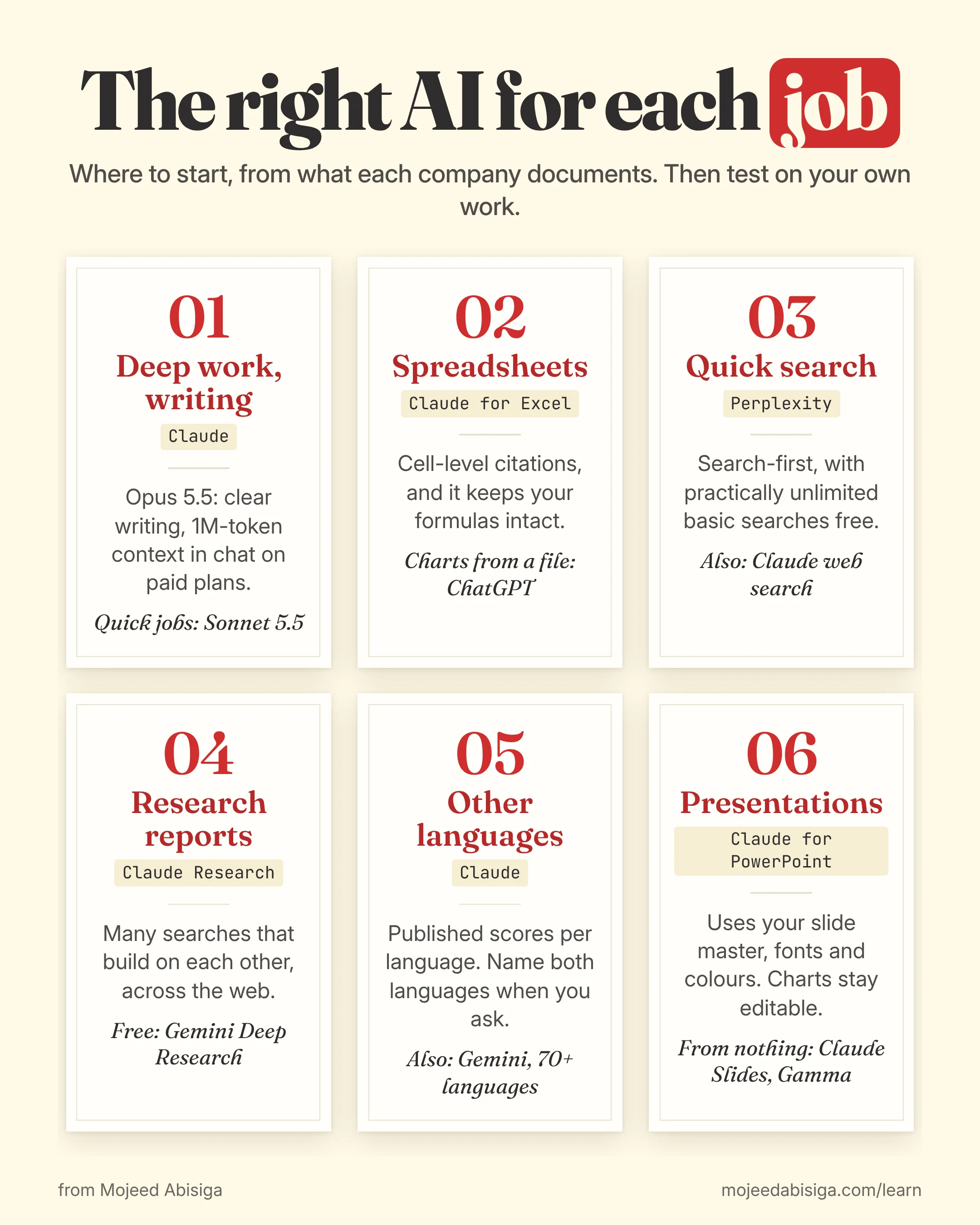
Here's everything above in one table. Save it.
| The job | Try first | Why, in one line | Also worth a look |
|---|---|---|---|
| Deep work and writing | Claude, Opus 5.5 | Clear writing, 1M-token context on paid plans | Sonnet 5.5 for quick jobs |
| Spreadsheets in Excel | Claude for Excel | Cell-level citations, keeps formulas intact | ChatGPT data analysis for charts |
| Spreadsheets in Google | Gemini in Sheets | Built into Google Workspace | Claude or ChatGPT with an upload |
| Quick answers with sources | Perplexity | Search-first, free basic searches | Claude web search |
| Research reports | Claude Research or Gemini Deep Research | Many searches that build on each other | Perplexity Pro |
| Other languages | Claude | Published scores per language, clear tips | Gemini, in 70+ languages |
| Slides on your template | Claude for PowerPoint | Uses your slide master and fonts | Claude Slides |
| Slides from nothing | Claude Slides or Gamma | A deck from one prompt | Claude for PowerPoint |
One job is missing on purpose: pictures.
Anthropic says Claude doesn't generate photos or illustrations. It makes diagrams, charts and visuals instead. For images, ChatGPT lists image generation on every plan, and Gemini's Nano Banana 2 model is free in the Gemini app.
How to test a tool on your own work
A tool can look perfect on paper and still miss on your material.
So give it a fair, quick test on something real.
- Pick one real task you did last week. Not a toy example.
- Write one prompt with the goal, the reader and the format.
- Run the same prompt in your usual AI and in the one this issue suggests.
- Compare on three things: what you'd have to fix, whether you can check it, and how long it took.
- Keep the winner for that job. Only that job.
Here is a task I do every week: [describe it].
Here is the material: [attach or paste].
Do the task as if you were handing it to my manager.
Then tell me, honestly, which parts I should double-check and why.
The last line works in any tool. It tells you where the weak spots are before your manager finds them.
Know a colleague who swears by one AI for everything? Send this to them.
What to do today
Pick the one job on this list you do most.
Try the tool named for it, with the prompt in that section.
Run the same-prompt test against what you use now.
Keep what wins. Leave the rest.
You don't need the best AI. You need the right one for the job in front of you.
NewsletterOne good prompt.Getting bland, generic answers? Five rules and one template that fix them:Mojeed