Guides · Claude
Give every job a home.
Cowork projects, from your first one to three you'll use every week:

Contents
You use Cowork for real work now.
A report here. Some research there. A proposal on Friday.
And every time, you explain the same things again.
Who the client is. Which folder to use. How you like the numbers laid out.
Projects fix that.
A project is one home for one kind of work. It keeps the files, the rules and what Claude has learned, so the next task starts where the last one stopped.
I teach people to use AI at work. This guide gives you the set-up, the prompts and the limits, in plain words.
By the end of this guide you'll have:
- a clear picture of what a Cowork project holds
- your first project, created the right way
- three ready workflows, with prompts, for reporting, research and sales proposals
- a simple rule for when a classic chat project is still the better choice
- a 15-minute set-up you can do today
You need:
- a paid Claude plan (Pro, Max, Ultra, Team or Enterprise), because Cowork isn't on Free
- the latest version of Claude Desktop, from claude.com/download
- one piece of work you repeat every week or month
New to Cowork? Start with Cowork, from zero, then come back.
Get the next one in your inbox
One practical guide at a time: the exact steps, the prompts to copy and the mistakes to skip.
Free. Delivered by Substack, one click to unsubscribe. Form not showing? Subscribe on Substack.
1. What goes inside a project
Cowork takes on multi-step work for you.
You describe the result, step away, and come back to finished work: a formatted document, organised files, a research summary.
A project wraps that work in a workspace.
Anthropic's help centre puts it simply: a project groups related tasks into a dedicated workspace with its own files, context, instructions and memory.
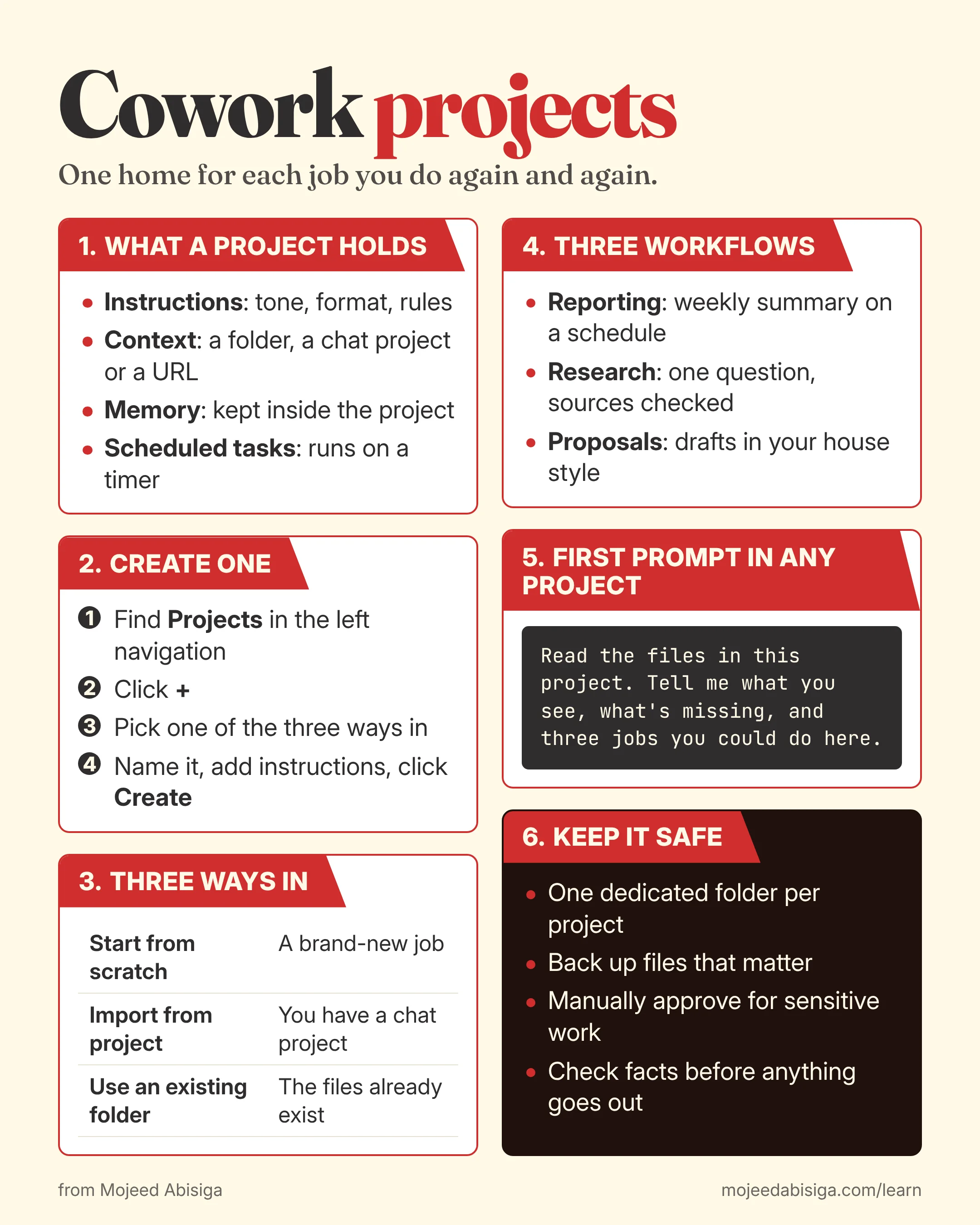
Each project has four parts:
| Part | What it does |
|---|---|
| Instructions | Tone, formatting or rules that guide every task in the project |
| Context | A local folder, a linked chat project, or a URL for Claude to reference |
| Memory | What Claude learns from tasks here, applied to future tasks here |
| Scheduled tasks | Recurring tasks that belong to this project only |
New projects you create in Cowork are saved to your Claude account. So you can pick them up from your other devices.
The help centre also says projects work the same way in Cowork and in Claude.
2. Pick your way in
There are three ways to create a project. Pick by where your material already lives.
| If... | Choose | What happens |
|---|---|---|
| The work is new | Start from scratch | You set up a new folder with instructions and files |
| You already have a classic chat project for it | Import from project | Its files and instructions move into a new Cowork project |
| The files already sit in a folder on your computer | Use an existing folder | That folder becomes the project's context |
A few details worth knowing before you click:
- Import from project shows a "Search projects in Chat..." field. Click into it to see recent projects, or search all of them.
- You can import one chat project at a time. Bulk upload isn't supported.
- With both import and an existing folder, you name the new project and choose where to save it on your computer.
3. Click through the set-up
Here's the click path, in words first.
- In Claude Desktop, find Projects in the left navigation panel.
- Click the + button.
- Choose Start from scratch, Import from project or Use an existing folder.
- Give the project a clear name, such as "Weekly sales report".
- Add instructions and attach any files you want it to start with.
- Click Create.
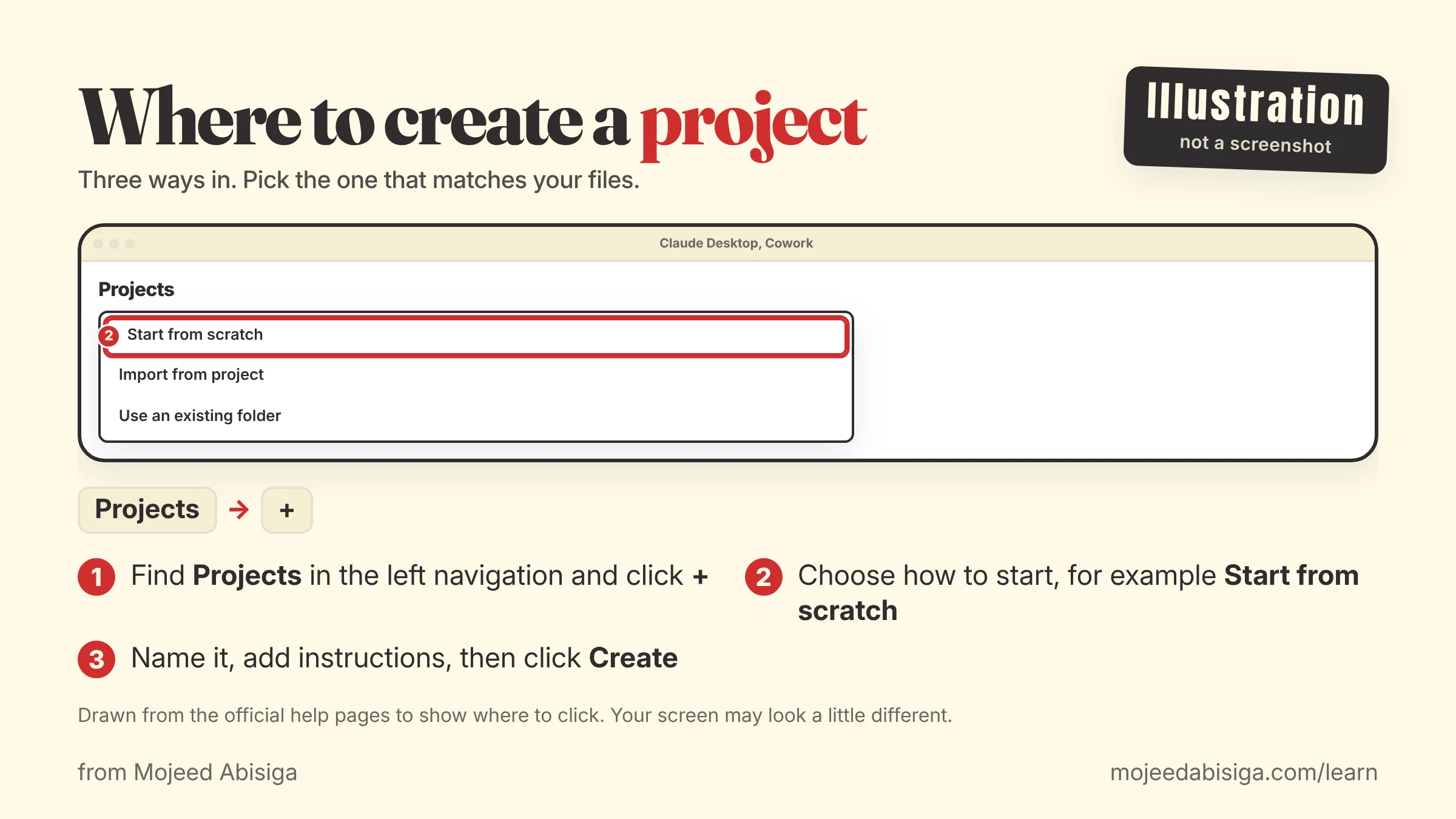
How to check it worked: the new project appears under Projects, and opening it shows its own page with Instructions, Context, Memory and Scheduled tasks.
If your message box no longer shows "Chat" and "Cowork" options, you have the new Claude experience. The help centre says some steps may look a little different there.
Not set up Cowork yet? Do that first
4. Write the instructions and add context
An empty project is just a folder with a name.
The instructions are what make it useful.
Write them like a note to a new colleague who will do this job every week. What's the job, who reads the result, what does good look like?
You don't have to write them alone. Let Claude interview you.
I'm setting up a Cowork project for [the job, e.g. our monthly marketing report].

Interview me, one question at a time, until you understand:
- who reads the result and what they decide with it
- the files and sources I use
- the format, length and tone I want
- the mistakes I don't want repeated

Then write short project instructions, readable in one minute, that I can paste into this project's Instructions.
Then add Context. You have three options:
- a local folder with the files this job uses
- a linked chat project, if you keep reference material there
- a URL, such as a public page Claude should always check
These instructions sit on top of your global instructions. Global ones apply to every Cowork session: your role, your usual tone. Set them at Settings → Cowork → Edit next to Global instructions. In the new Claude experience, they're part of Instructions for Claude in Settings → Your Claude.
So keep the global ones about you, and the project ones about the job.
GuideBrief Claude like a new colleague.Short prompts get average answers. A two-minute brief gets the finished thing, first time:5. Decide what it remembers
Memory is on for Cowork projects.
Claude remembers context from tasks you run in a project and applies it to later tasks in the same project.
What it learns in one project doesn't carry over to other projects.
But here's the part most people miss: a project also shares memory with your chats outside projects.
That's handy for a personal workflow. It's less handy for client work.
To keep a project fully separate:
- Open the project's page.
- Go to Memory.
- Turn off Use account memory.
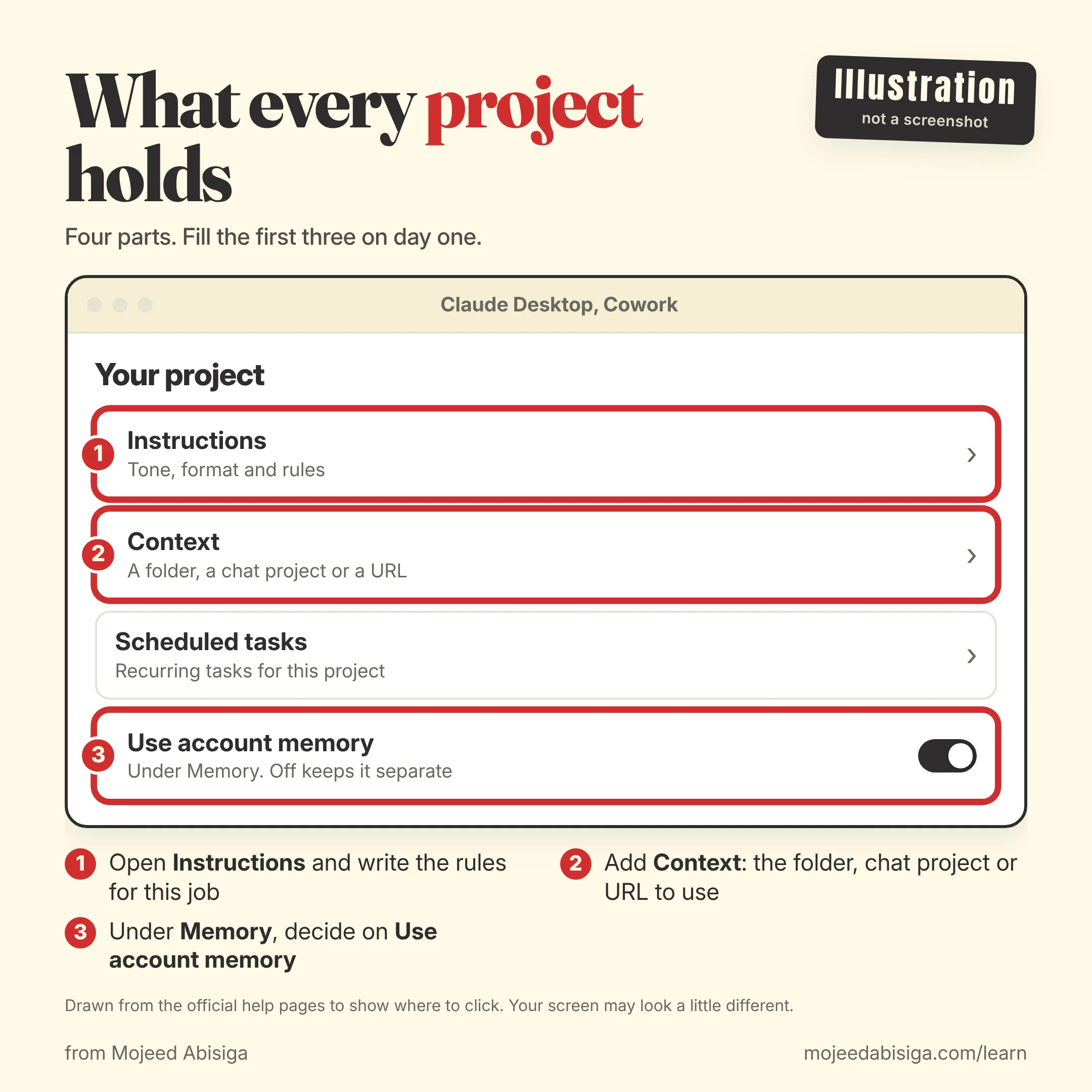
A simple rule: client, HR or finance work gets Use account memory off. Your own recurring admin can leave it on.
6. Workflow one: the weekly report
Good for: analysts, managers, operations leads, anyone who sends the same update every week.
Set up the project once:
- Instructions: who reads the report, the sections, the numbers that matter, the tone.
- Context: one folder where the weekly export lands.
- Example: last month's best report, so Claude can match it.
Cowork can produce Excel spreadsheets with working formulas, PowerPoint decks and formatted documents. So ask for the format your readers actually open.
Use the newest file in this project's folder.

1. Check the data first: list missing values, odd totals and anything that changed sharply since last week.
2. Then write this week's report in the format from my instructions: a three-line summary at the top, then one short section per metric.
3. Add an Excel file with the numbers behind each chart, using working formulas.
4. End with a list of anything you weren't sure about, so I can check it before it goes out.
Once it runs well by hand, put it on a timer.
Inside the project, open Scheduled tasks. Or type /schedule in a Cowork task, or click Scheduled in the left sidebar.
The manual form asks for a task name, the prompt, an approval mode, a frequency (hourly, daily, weekly, on weekdays, or manually), an optional model and an optional folder.
Anthropic's advice for scheduled tasks: start simple, avoid sensitive data and hard-to-undo actions, review the output after each run, and pause tasks you aren't using.
7. Workflow two: a research project
Good for: consultants, strategists, students, product people, anyone answering one big question over several sessions.
Research is where memory earns its keep. Session one finds the sources. Session two builds on them, without you pasting everything back in.
- Instructions: the question, who it's for, how sure you need to be.
- Context: a folder of reports and notes, plus a URL or two you trust.
Start with a plan, not an answer.
My question for this project is: [your question].

Before you research anything:
1. Restate the question in one sentence.
2. Split it into 3 to 5 smaller questions.
3. List which files in this project help with each one, and what's missing.

Wait for my OK before you start.
Then, in later sessions:
Using everything we've found in this project so far, write a two-page brief that answers my question.

- Lead with the answer in three sentences.
- Under each finding, name the source file or link it came from.
- Mark anything that rests on a single source.
- Finish with the open questions we still haven't answered.

Save it as a Word document in the project folder.8. Workflow three: proposals for clients
Good for: account managers, founders, freelancers, agencies.
Make one project for your proposal process, or one per big client if each needs different rules.
- Instructions: your offer, your pricing rules, your house style, what you never promise.
- Context: a folder with two or three past proposals that won, your service sheet and your case studies.
Anthropic has also open-sourced a Sales plugin for Cowork, if you want more structure later.
Here are my notes from today's call with [client]: [paste notes or name the file].

Draft a proposal in our house style from the instructions:
1. Their problem, in their words.
2. What we'll do, in three to five steps.
3. Timeline and what we need from them.
4. Price, using only the pricing rules in this project. If a rule doesn't cover something, flag it instead of guessing.

Then list three questions I should ask before I send it.
And when you want a sharper version:
Read the proposal draft as if you were the client's finance lead.
List the five places you'd push back or say no, in order of risk.
Then suggest one change for each. Don't rewrite the whole thing.Get the next one in your inbox
One practical guide at a time: the exact steps, the prompts to copy and the mistakes to skip.
Free. Delivered by Substack, one click to unsubscribe. Form not showing? Subscribe on Substack.
9. When a classic chat project fits better
Classic projects, the ones at claude.ai/projects, haven't gone away.
They're self-contained workspaces with their own chat histories and a knowledge base. You create one with + New Project, add files with +, and add instructions with Set project instructions.
A simple way to choose:
| You need... | Better fit |
|---|---|
| A place to ask questions about a fixed set of documents | Classic chat project |
| Claude to produce files: reports, spreadsheets, decks | Cowork project |
| To work on the Free plan | Classic chat project (Free users can create up to five) |
| Work that runs on a schedule | Cowork project |
| Files from a folder on your computer | Cowork project |
| A big knowledge base on a paid plan | Classic chat project: near its limits, knowledge switches to retrieval, expanding capacity by up to 10x |
One note on the classic kind: context isn't shared across chats in a project unless you add it to the project knowledge.
And you don't have to choose forever. You can link a chat project as Context in a Cowork project, or bring one over with Import from project.
NewsletterClaude, past the basics.Eighteen small habits that save time, usage and mistakes:10. Your 15-minute set-up
Pick one job you repeat. Then:
Minutes 0 to 3: the folder. Make one folder on your computer just for this job. Copy in only the files it needs. Back up anything important first.
Minutes 3 to 5: the project. Projects → + → Use an existing folder. Pick that folder, name the project, click Create.
Minutes 5 to 10: the instructions. Run the interview prompt from step 4. Paste the result into Instructions.
Minutes 10 to 12: memory. Decide on Use account memory. Client work: off.
Minutes 12 to 15: the first task. Give it one small, real piece of the job.
Read the files and instructions in this project.
Tell me in five lines what you understand the job to be, what's missing, and three tasks you could do here.
Don't change any files yet.
If its summary is wrong, fix the instructions now. It's the cheapest moment to do it.
11. Know the honest limits
Projects are good. They're not magic. Here's what the official pages say.
- Paid plans only. Cowork, and so Cowork projects, need Pro, Max, Ultra, Team or Enterprise.
- Desktop app needed. Projects in Cowork require the latest version of Claude Desktop. Projects tied to a local folder support Cowork sessions on desktop only.
- It won't save things into the project for you. Cowork won't change a project's contents, so add anything you want to keep to the project yourself.
- Not in Claude Code yet. Projects are only in Cowork for now. Anthropic says Claude Code support is planned.
- File size. The Cowork docs say Claude reads individual files up to 50 MB.
- Archiving is light. Archiving removes the project from the app, but files and folders on your computer aren't touched.
- Team and Enterprise without "Chat and Cowork unified": projects made from an existing folder stay on that computer and aren't saved to your account.
- Usage. Multi-step tasks use more of your limit than a quick question. Group related work into one task, start a new conversation for unrelated work, and watch Settings → Usage.
- The pages disagree. The help centre says Cowork projects are saved to your account and can be shared on Team and Enterprise. An older Cowork docs page says projects live only on your computer and can't be shared. If you see the second behaviour, that's probably why.
What to do today
- Claude Desktop is on the latest version
- One dedicated folder holds only one job's files
- My first project exists, with instructions written
- I chose on purpose whether Use account memory stays on
- I ran the first-task prompt and corrected the instructions
- I picked which of the three workflows to set up next
Questions
Can my team use my project?
On Team and Enterprise plans, yes: share it with Can view or Can edit access. The help centre lists project sharing for those two plans.
What happens to my old folder-based projects?
Claude Desktop moves projects you made from a folder into your Claude account. Their names, descriptions and instructions move, plus a copy of the memory if memory is on. The folders and files stay on your computer. Nothing is uploaded or deleted.
Can I start a chat inside a project?
Yes. The help centre says projects are on every surface, and from a project you can start a chat or a Cowork session. Claude uses the project's knowledge as context either way.
Where's the official page?
Anthropic's projects in Cowork help article, plus the pages on scheduled tasks, using Cowork safely and classic projects.
Know someone who re-explains the same job to Claude every Monday? Send them this guide.
Build one project this week. Keep the job small and the instructions honest.
Mojeed
GuideCowork, from zero.You don't code? Good. Here's how to hand Claude real work, step by step: GuideSet up Cowork once.Already tried Cowork? Set it up properly in one sitting, and stop babysitting it: