Newsletter · claude
Claude, past the basics.
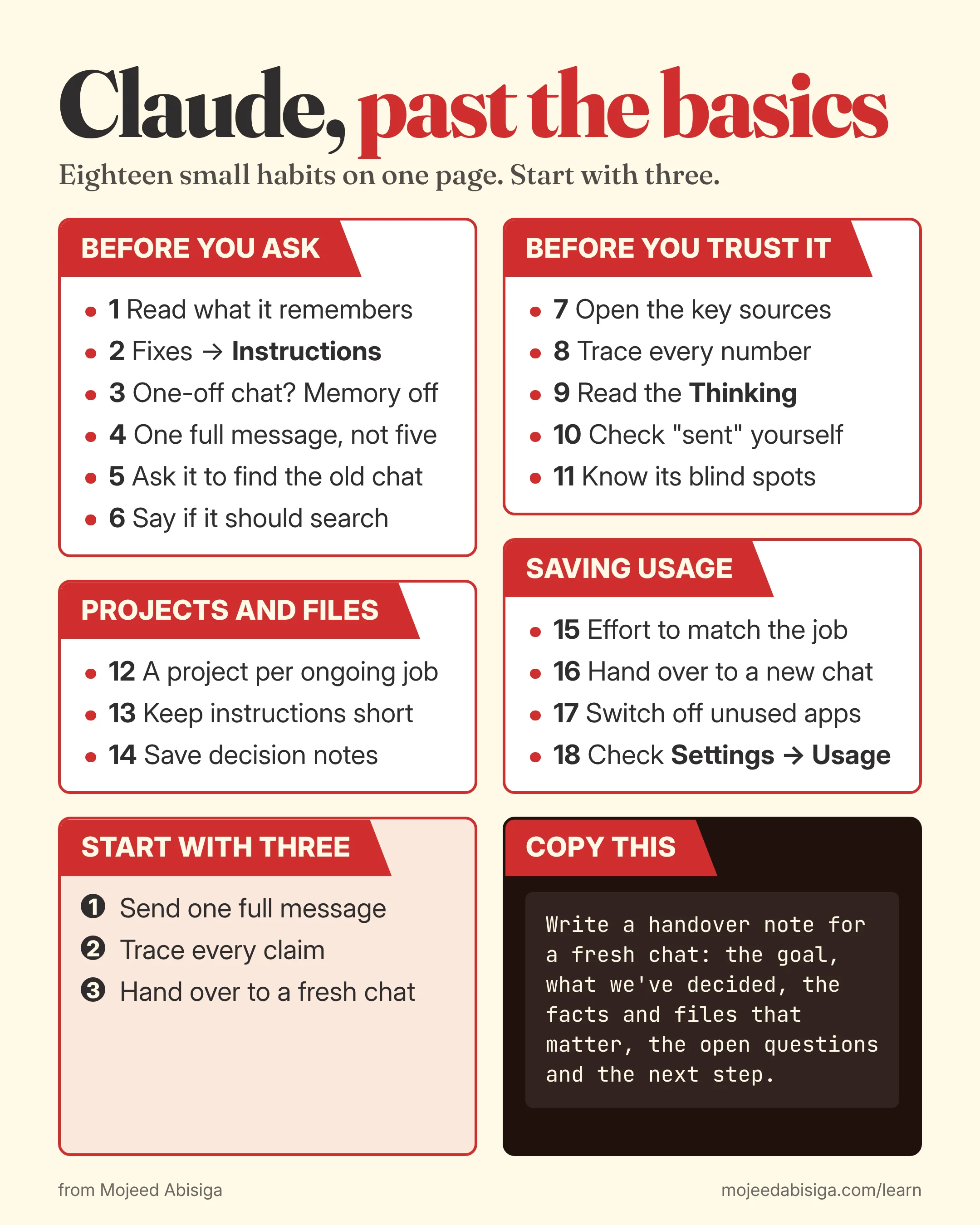
Eighteen small habits that save time, usage and mistakes:

Getting one good answer out of Claude is the easy part.
The rest of the week is where things slip.
The chat that runs so long it eats into your limits.
The number that went into a report without a check.
The file you upload again, and again.
The limit that arrives halfway through a task.
A better prompt won't fix any of those. Small habits will.
I teach people to use AI at work.
These are the habits I'd want every one of them to have.
Most take one click or one sentence.
Here are eighteen, in three groups:
- Before you ask: help Claude know you, and ask so the first answer lands.
- Before you trust the answer: five quick checks.
- Make it last: projects, fresh chats and the settings that stretch your usage.
New to Claude? Start with Claude, from day one, then come back.
Get the next one in your inbox
One practical guide at a time: the exact steps, the prompts to copy and the mistakes to skip.
Free. Delivered by Substack, one click to unsubscribe. Form not showing? Subscribe on Substack.
Before you ask
Six habits for the minute before you type.
1. Read what Claude remembers about you
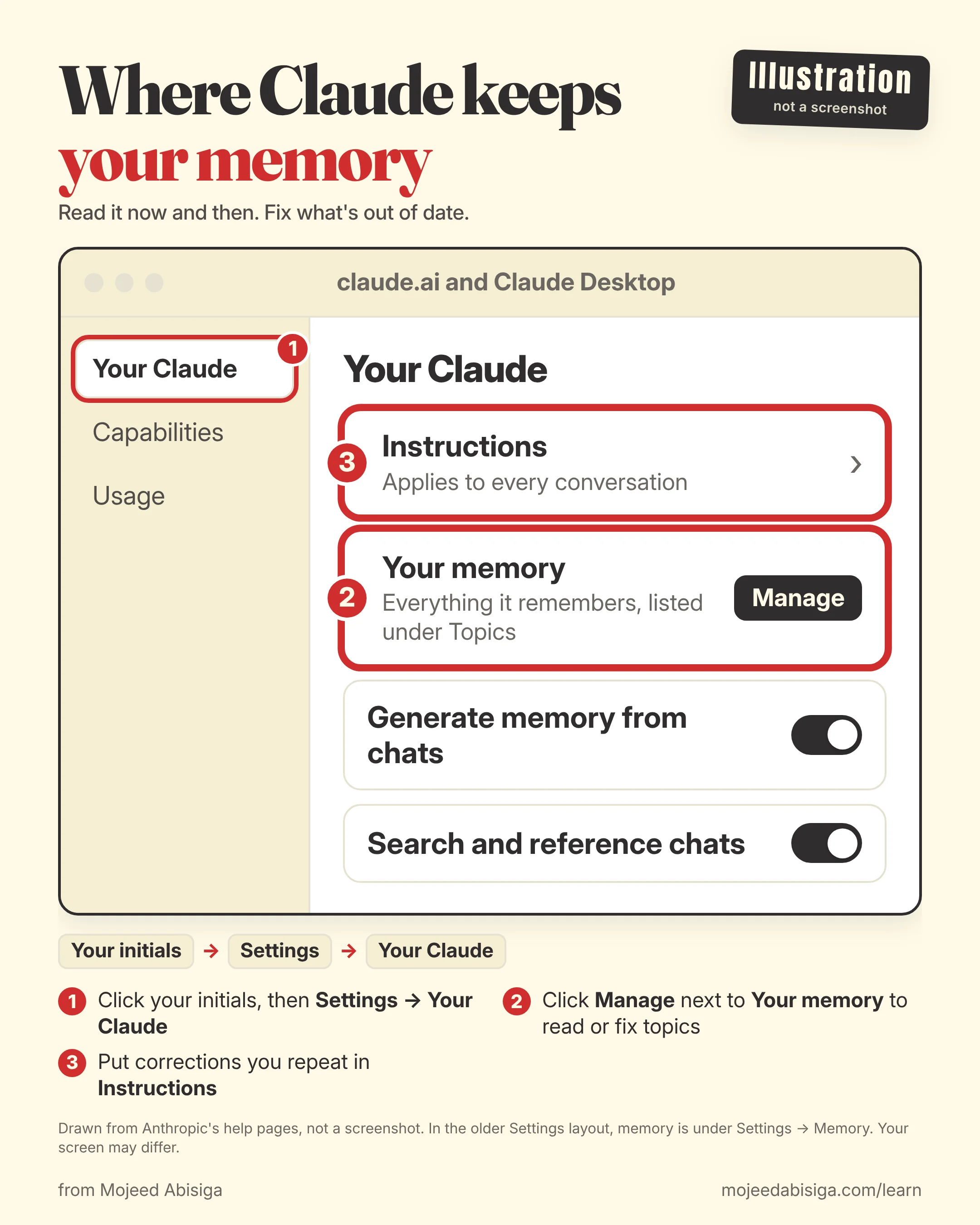
Claude keeps a memory of you.
On the Free, Pro, Max and Ultra plans, it's on by default.
It saves what it learns as topics, while you chat. Mention that a deadline moved, and your next conversation already knows.
Useful, until something it remembers goes out of date.
So read it now and then:
- Click your initials, then Settings → Your Claude.
- Click Manage next to Your memory.
- Everything is listed under Topics. Open one, then use the edit icon to fix it, or Delete to remove it.
Fix a topic once, and every conversation from then on uses the fixed version.
You can also update it from any chat:
Please update your memory: I no longer [the old detail]. I now [the new detail]. Forget anything that says otherwise.The change applies from your next conversation.
2. Turn repeated corrections into Instructions
Caught yourself typing "shorter" or "no jargon" again?
A correction you make twice belongs in Instructions.
It's on the same page: Settings → Your Claude → Instructions.
Instructions apply to every conversation. Anthropic suggests four things to put there:
- how you like to work
- the terms you use
- the situations you often face
- how you want Claude to communicate
I work as [your role] in [your field].
Write in plain English: short paragraphs, no jargon, no filler.
Start long answers with a three-line summary.
When I say "[a term you use]", I mean [what it means].
If something important is missing, ask me before you start.
Keep it general. Details for one task belong in that task's chat.
Pasting the same long brief for one kind of job? That's a skill. Make your first one.
3. Switch memory off before a one-off chat
Helping a friend with their CV?
Asking about something you don't want shaping later answers?
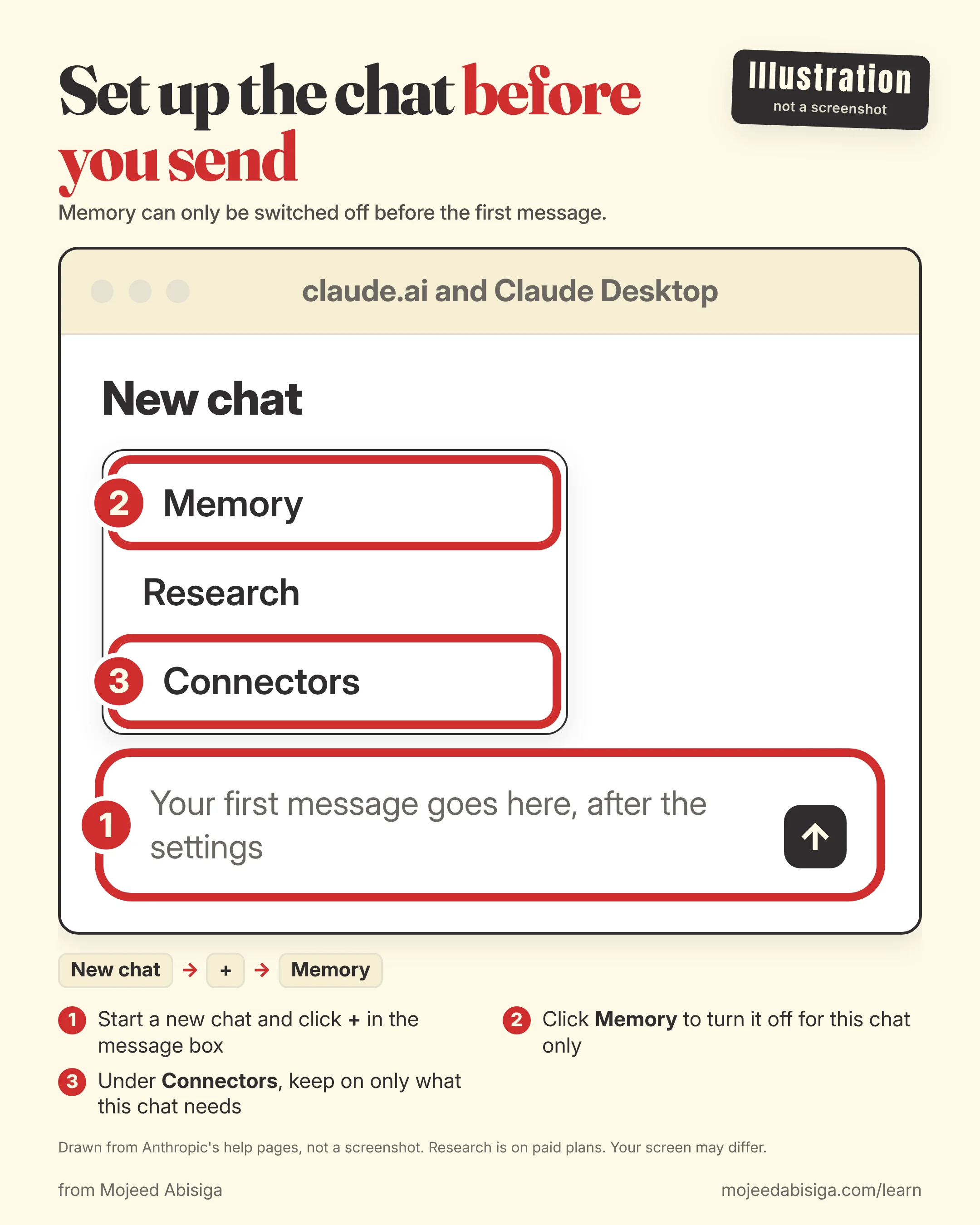
Turn memory off for that one chat. Do it before your first message: you can't change it later.
- Start a new chat.
- Click + in the message box.
- Click Memory to turn it off, then send your message.
A crossed-out memory icon then appears next to the chat title.
Want it kept out of your chat history too?
Open an incognito chat instead: the ghost icon in the upper right corner of a new chat, outside a project.
| Memory off for one chat | Incognito chat | |
|---|---|---|
| Uses or adds to your memory | No | No |
| Stays in your chat history | Yes | No |
| Found when Claude searches past chats | Yes | No |
| How to start it | + → Memory, before you send | Ghost icon, upper right |
Incognito chats aren't used for training.
They're kept for 30 days by default.
And in the new Claude experience, Claude can't make files or run code in them.
4. Send one full message, not five small ones
Anthropic's first tip for getting more from your plan: plan the chat before you begin.
- Know what you need.
- Group related questions into one message.
- Give the background up front.
- Paste the whole text you want edited, not one piece at a time.
Then read it once before you send.
A clear first message saves a round of follow-ups.
I'm preparing [the piece of work] for [who it's for].
Here's what I have: [paste it, or attach the file].
Please answer these together:
1. [first question]
2. [second question]
3. [third question]
Put each answer under its own heading. If you need anything else from me, ask before you start.
5. Ask Claude to find the old chat
On paid plans, Claude can search your past chats.
So you don't have to explain the background again. Just ask:
Find our conversation about [topic]. Remind me what we decided, then let's continue from there.You'll see the search in the chat as a tool call.
Inside a project, Claude searches only that project's chats.
6. Tell Claude whether to search the web
In the new Claude experience, there's no web search switch.
Claude searches when it decides a search helps.
You can still steer it, in plain words:
| You need | Do this | Why |
|---|---|---|
| A quick, current fact | Ask it to search the web | One or two searches, with citations |
| A full report from many sources | + → Research (paid plans) | Five or more searches, over 1 to 3 minutes |
| Work on what you've given it | Say "Don't search the web for this" | Searches add to your usage |
Brief Claude like a colleague: the guide
Before you trust the answer
Anthropic is clear about this.
Don't treat Claude as your only source of truth.
And look hard at any advice with high stakes.
Five checks turn that into a habit.
7. Open the sources behind your key claims
Answers that use web search come with citations.
Click the ones your point depends on.
The original page may hold context or detail that Claude's summary left out.
8. Ask where every number came from
Claude can write a quote that sounds authoritative and isn't grounded in fact.
Numbers, names and dates can slip the same way.
Before anything goes into a report, run this:
Before I use this, list every number, name, date and quote in your answer. For each one, say where it came from: my file, a web source (with the link) or your general knowledge. Mark anything you're not sure of.Then check everything marked "general knowledge" yourself.
9. Open the thinking on hard questions
On the newest models, like Opus 5.5 and Sonnet 5.5, thinking can't be switched off.
A Thinking section sits above the reply.
Click it to read a summary of how Claude worked the problem.
Anthropic says this can help you check how Claude reached its conclusion.
If the reasoning rests on an assumption you'd never make, you've found the problem.
10. Check "sent" with your own eyes
Claude can claim it sent an email or made a document somewhere else.
It can also give you links that don't work.
But Claude can't use tools that aren't connected to it.
That includes your email and your word processor, unless you've connected them.
So when it says "sent", look in your sent folder.
When it gives you a link, click it before you forward it.
11. Know what Claude can't see
Three blind spots to remember:
- Recent events. The newest models learned from data up to June 2026. For anything later, ask Claude to search.
- Charts in long PDFs. Claude reads charts and images only in PDFs of 100 pages or fewer. Beyond that, it reads the text only.
- Charts in other files. From Word documents and other non-PDF files, Claude takes the text only.
If a chart matters, upload it on its own as an image, such as a PNG or JPEG.
Claude can read the images you upload.
Ask Claude about your data, the careful way
Make it last
Seven habits for work that runs for days, and for your plan's limits.
12. Give each ongoing piece of work a project
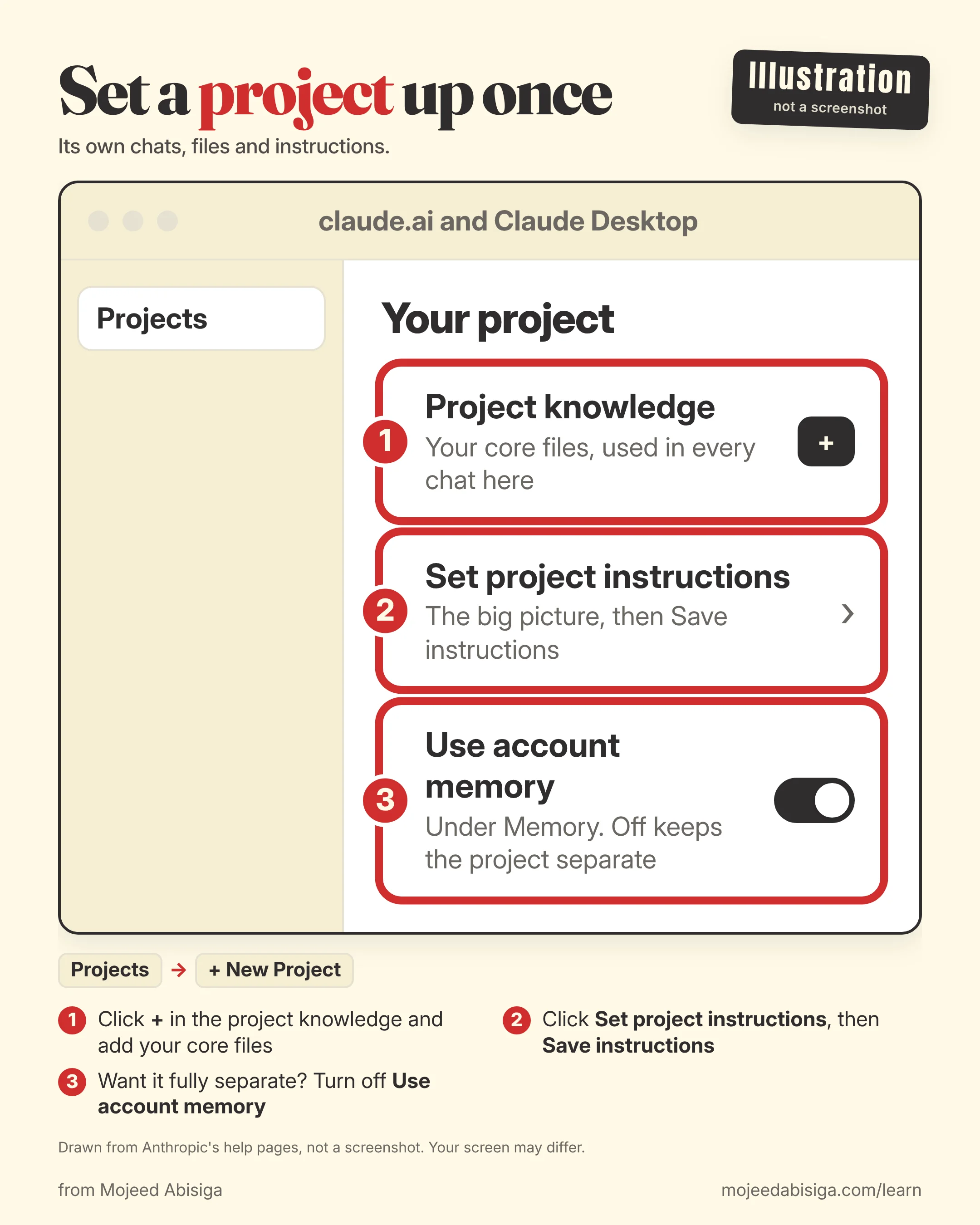
A project is a workspace with its own chats, files and instructions.
Every plan has projects. Free accounts can make up to five.
There's a usage reason too.
Files in a project are cached, so they count less against your limits each time you reuse them.
- Click Projects on the left, or go to claude.ai/projects.
- Click + New Project in the upper right corner.
- Click + in the project knowledge and add your core files.
- Click Set project instructions, write them, then Save instructions.
One detail worth knowing: Claude can't see your project's name or description.
Anything it needs goes in the instructions or the files.
13. Keep project instructions short and files current
Anthropic's advice: use project instructions for the big picture.
That means the context, the key guidelines and Claude's role.
Keep instructions for one task in that task's chat.
And clear out files you've stopped using.
Shorter instructions and fewer files help your context window and your usage.
14. Save decisions where the next chat can find them
Chats in the same project don't share context on their own.
Only what's in the project knowledge is there for every chat.
So when a chat settles something, save it:
Write a short note on what we settled in this chat: the decisions, the reasons, the open questions and the next step. Plain text, no more than 10 lines, ready to add to the project knowledge.Save the note as a text file. Then add it with + in the project knowledge.
Started the chat outside the project?
Click the dropdown arrow next to the chat name, then Add to project.
15. Match the effort to the job
Effort sets how much thinking Claude puts into each reply.
Higher effort is more thorough, but slower, and it uses more of your limits.
Click the model name next to the send button, click Effort, and choose:
- Low or Medium for routine work. They stretch your usage furthest.
- High for the best balance of quality and speed.
- Max for the hardest problems, when you can wait for the answer.
Extra high is built for long coding and agent tasks.
You can change effort in the middle of a chat.
It applies from the next reply.
So raise it for the one hard question, then bring it back down.
Want the menu drawn out? It's in the model menu, step by step.
16. Start a fresh chat when a long one drags
When a long chat nears its limit, Claude can summarise the earlier messages to keep going.
You may see it "organizing its thoughts".
Handy, but those long chats use more of your limits.
Anthropic suggests a new chat when you're close to your limit in a long one.
Take the useful part with you:
Write a handover note for a fresh chat: the goal, what we've decided, the facts and files that matter, the open questions and the next step. Write it so I can paste it as the first message of a new chat.17. Switch off what this chat doesn't need
Connected apps and tools use a lot of tokens.
Anthropic suggests turning off the apps a conversation doesn't need.
Click + in the message box and hover over Connectors.
Switch on only the apps this chat needs.
Lots of apps connected?
Under Connectors → Tool access, the default is Auto.
With 10 or more connectors active, Anthropic suggests On demand, to give your chats more room.
18. Check Settings → Usage before a big job
Your five-hour session starts with your first message.
It resets in full five hours later.
Paid plans add a weekly limit, which resets at a fixed day and time.
On paid plans, Settings → Usage shows three things:
- how much of your current session you've used
- how long that session has left
- when your weekly limit resets
Look before you start something long, like a Research report.
If the bar is nearly full, plan around the reset.
Start with these three
Eighteen is a lot. You don't need them all this week.
Start with the three that pay off in your very next chat:
- Send one full message (habit 4). Fewer round trips, and a better first answer.
- Trace every claim (habit 8). Run it on anything you'll put your name to.
- Hand over to a fresh chat (habit 16). Long work keeps its thread, without a long chat's cost.
Then add one more habit each week.
Get the next issue by email
One practical guide at a time: the exact steps, the prompts to copy and the mistakes to skip.
Free. Delivered by Substack, one click to unsubscribe. Form not showing? Subscribe on Substack.
What to do today
Open Settings → Your Claude and read your memory topics.
Fix one thing that's out of date.
Then add one correction you keep making to your Instructions.
Two habits, done before your next chat.
NewsletterOne good prompt.Getting bland, generic answers? Five rules and one template that fix them:Send this to one colleague whose Claude chats run for days.
Mojeed