Newsletter · claude
Claude is a toolkit.
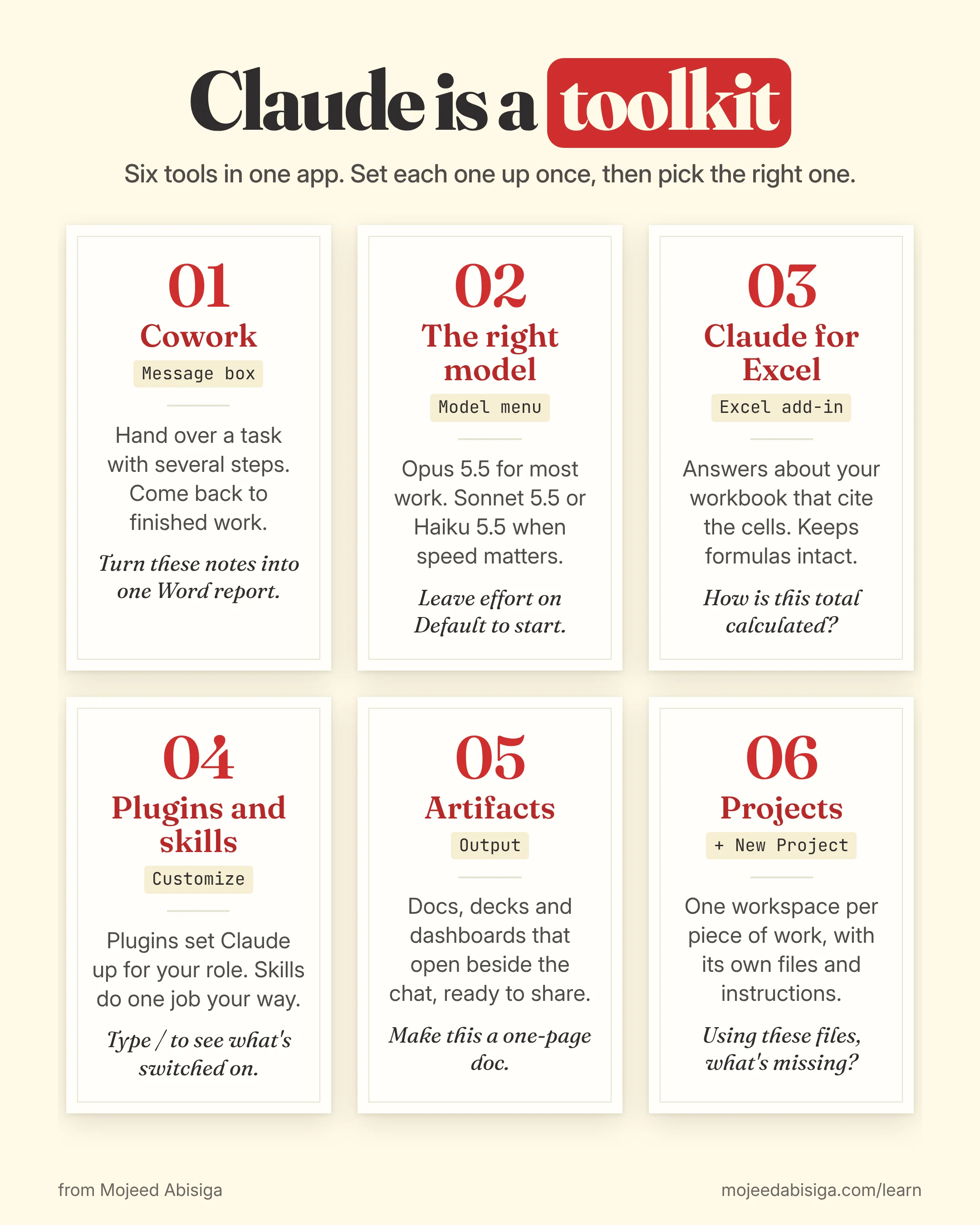
Six tools in one app, and how to set each one up:

You open Claude.
You ask a question.
You copy the answer somewhere else.
That's one tool. Claude has at least six.
Set each one up once, and Claude stops being a tab you visit. It becomes the place you work.
I teach people to use AI at work. This is the set-up I'd want every one of them to have.
Here's each tool, with when to reach for it, a first prompt and one tip:
- The model menu, for the right model and effort
- Projects, for work that keeps coming back
- Artifacts, for work you'll put in front of someone
- Plugins and skills, for a set-up that fits your role
- Cowork, for tasks with several steps
- Claude for Excel, for work that lives in a spreadsheet
- Where to double-check Claude
- A set-up you can finish in half an hour
Get the next one in your inbox
One practical guide at a time: the exact steps, the prompts to copy and the mistakes to skip.
Free. Delivered by Substack, one click to unsubscribe. Form not showing? Subscribe on Substack.
Pick the model, then the effort
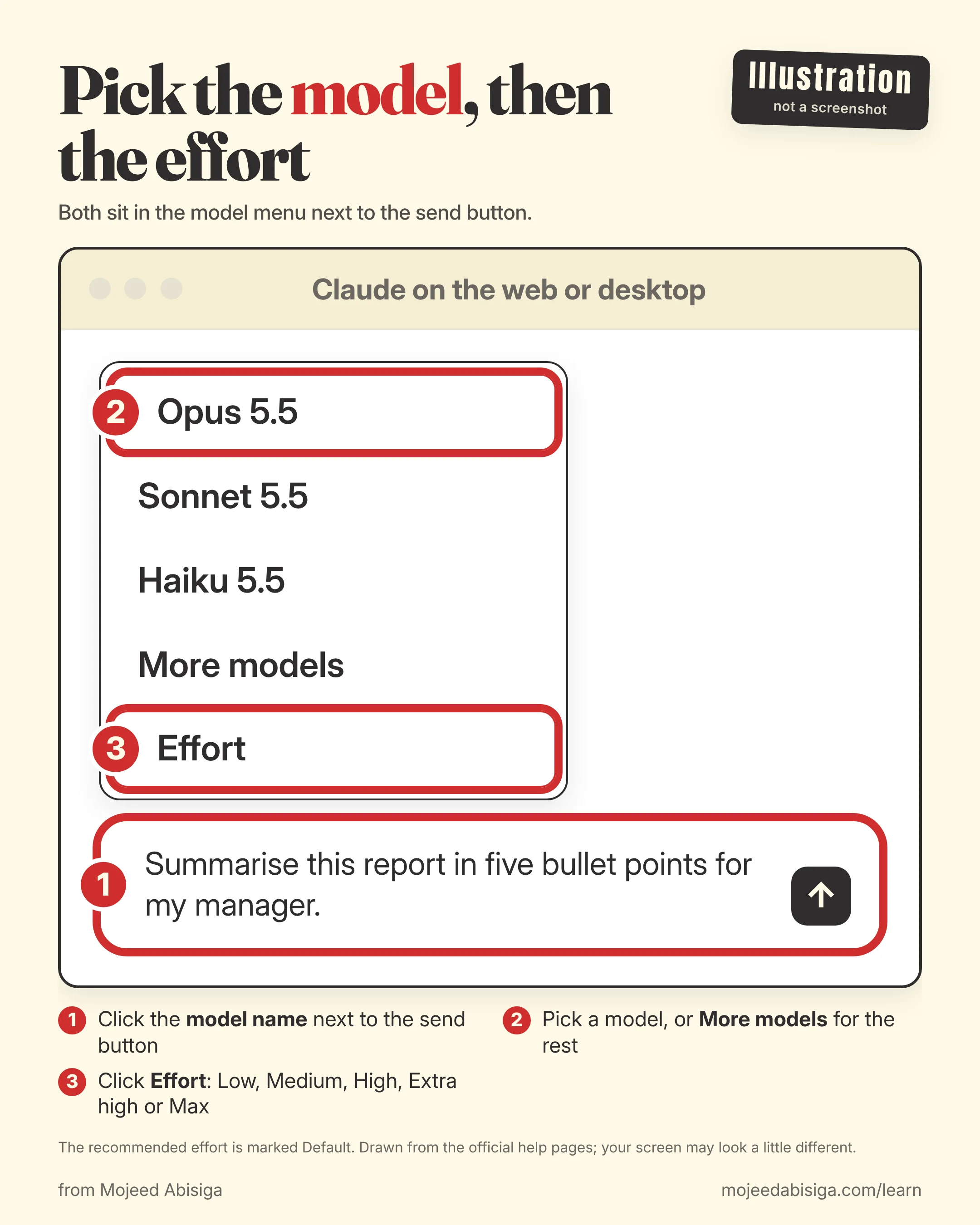
The model menu next to the send button holds several Claude models.
Each one has a job:
| Model | Reach for it when | Speed |
|---|---|---|
| Opus 5.5 | Most of your work. Anthropic calls it the "strongest daily driver" | Moderate |
| Fable 5.2 | Hard reasoning, and long tasks with many steps | Moderate |
| Sonnet 5.5 | Everyday tasks, and polished documents, slides and spreadsheets | Fast |
| Haiku 5.5 | Lots of quick, simple jobs | Fastest |
On Free, you get Sonnet and Haiku. Opus is on Pro, Max and Ultra. Fable is on paid plans, though on Pro it runs on usage credits.
When to switch: start on Opus 5.5, as Anthropic's own docs advise when you're unsure. Move up or down only when the job asks for it.
Where to find it: click the model name next to the send button and pick a model, or click More models. On your phone, the model name sits at the top of the screen.
Then set the effort. Click the model name, click Effort and choose Low, Medium, High, Extra high or Max. The level Anthropic recommends for each model is marked Default.
A first prompt to copy: run one real task on two models, then compare.
Here's an update I need to send my manager: [paste it]. Rewrite it so the decision we need comes first, then the three facts behind it. Keep it under ten lines.Send it on Sonnet 5.5. Then switch to Opus 5.5 and send it again. The switch applies from Claude's next answer. On Free, compare Sonnet with Haiku.
What you get back: two versions of the same update. Keep the model whose answer you'd send without edits.
Still picking Sonnet 4.6? It leaves the model menu on Free, Pro, Max and Ultra on December 8, 2026. Anthropic recommends Sonnet 5.5 instead.
NewsletterOpus 5.5, in plain words.What changed, which Claude to pick for which job, and how to switch:Projects, for work that comes back
Some work isn't a one-off. A client. A course. The report you write every month.
A project gives that work its own space: its own chats, its own files and its own instructions. Claude keeps a separate memory for each project, too.
Projects are on every plan. Free accounts can make up to five.
When to use it: any piece of work you return to, with files you'd otherwise upload again and again.
Where to find it:
- Click Projects on the left, or go to claude.ai/projects.
- Click + New Project in the top right and name it. Claude doesn't see the name or description, so save instructions for step 4.
- In the project's knowledge, on the right, click + and add your files.
- Click Set project instructions, write how Claude should work here, then Save instructions.
A first prompt to copy, in a new chat inside the project:
Using only the files and instructions in this project, tell me in five lines what this piece of work is about. Then list what's missing that you'd need to do it well, and ask me for it.What you get back: a short summary, and a list of the gaps to fill before the real work starts.
Chats in a project don't share context with each other. If something matters to every chat, add it to the project's knowledge.
Skill, project or instructions? How to choose
Artifacts, for work you'll share
Some answers you read once. Others you send.
For the second kind, Claude makes an artifact: a document, deck, design, dashboard or small interactive tool that opens beside the chat. You can edit it, come back to it and share it.
Artifacts are on every plan, including the Docs, Slides and Design templates.
When to use it: whenever the result is something you'll send, present or reuse.
Where to find it: ask for one in any chat. Or select Output in the message box and choose a template. Everything you make is saved in the Artifacts tab in the sidebar.
Artifacts need Create and edit files switched on in Settings → Capabilities. It's on by default on Free, Pro, Max and Ultra.
A first prompt to copy:
Turn the notes below into a one-page doc for my manager: the decision we need, three options with the cost and risk of each, and my recommendation. Plain English, no jargon.

[paste your notes]
What you get back: a doc beside the chat. Start it from the Docs template and you can type in it directly, then export it to Word, PDF, Markdown or Google Docs. Decks made with Slides export to PowerPoint or PDF.
Get the next issue by email
One practical guide at a time: the exact steps, the prompts to copy and the mistakes to skip.
Free. Delivered by Substack, one click to unsubscribe. Form not showing? Subscribe on Substack.
Plugins and skills, for your role
Out of the box, Claude is a generalist. Plugins and skills fit it to your work.
Plugins bundle skills, connectors and sub-agents into one package, so you get a ready-made set-up for your role from the first conversation. The library covers sales, finance, legal, marketing, HR, engineering, design, operations, data analysis and more. Plugins are on paid plans.
Skills are folders of instructions, scripts and resources that Claude loads when a task needs them. They're on every plan. Claude already has built-in skills for Excel, Word, PowerPoint and PDF files, and uses them by itself.
Connectors let Claude reach your other apps and data, using your own permissions.
When to use them: a plugin when you want a set-up for your role without building it. A skill when you have one job you want done your way. A connector when the answer lives in another app.
Where to find them:
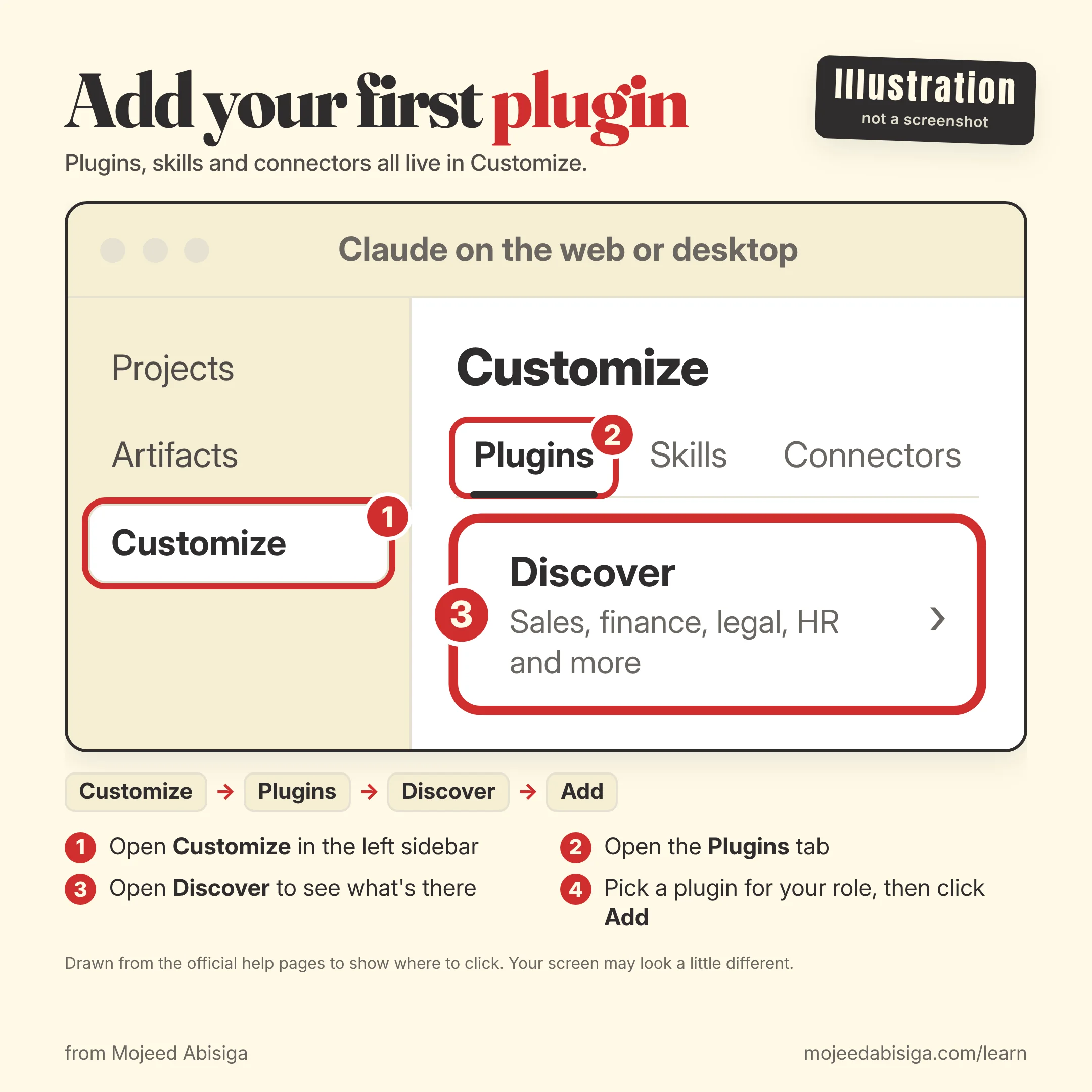
- Open Customize in the left sidebar. Your plugins, skills and connectors all live there.
- Open the Plugins tab, then Discover.
- Pick the plugin for your role and click Add.
To see the skills a plugin brought with it, type / in the message box or click +.
For a skill of your own, zip its folder. Then go to Customize → Skills, click +, then + Create skill → Upload a skill.
A first prompt to copy: see a built-in skill at work, on any plan.
Turn the notes below into a two-page Word document: a title, three headings and a table of actions with an owner and a date for each. Leave a cell empty where the notes don't say.

[paste your notes]
What you get back: a Word file, made with Claude's built-in Word skill. Nothing to install.
Cowork: hand over the whole task
A chat answers one message at a time.
Cowork takes on a whole task. You describe the result you want. Claude makes a plan, splits the work into steps and hands back finished work: formatted documents, organised files, research pulled together.
When to use it: for the jobs you'd hand a colleague with "go and do this". Several steps, several files, and a document, spreadsheet or deck at the end.
Where to find it: Cowork is on paid plans. In the message box, select Cowork, describe the task, then read Claude's plan and let it run. Select Chat to go back to a normal conversation.
No Chat or Cowork option in your message box? You already have the new Claude experience, where the two are one conversation. Just describe the task.
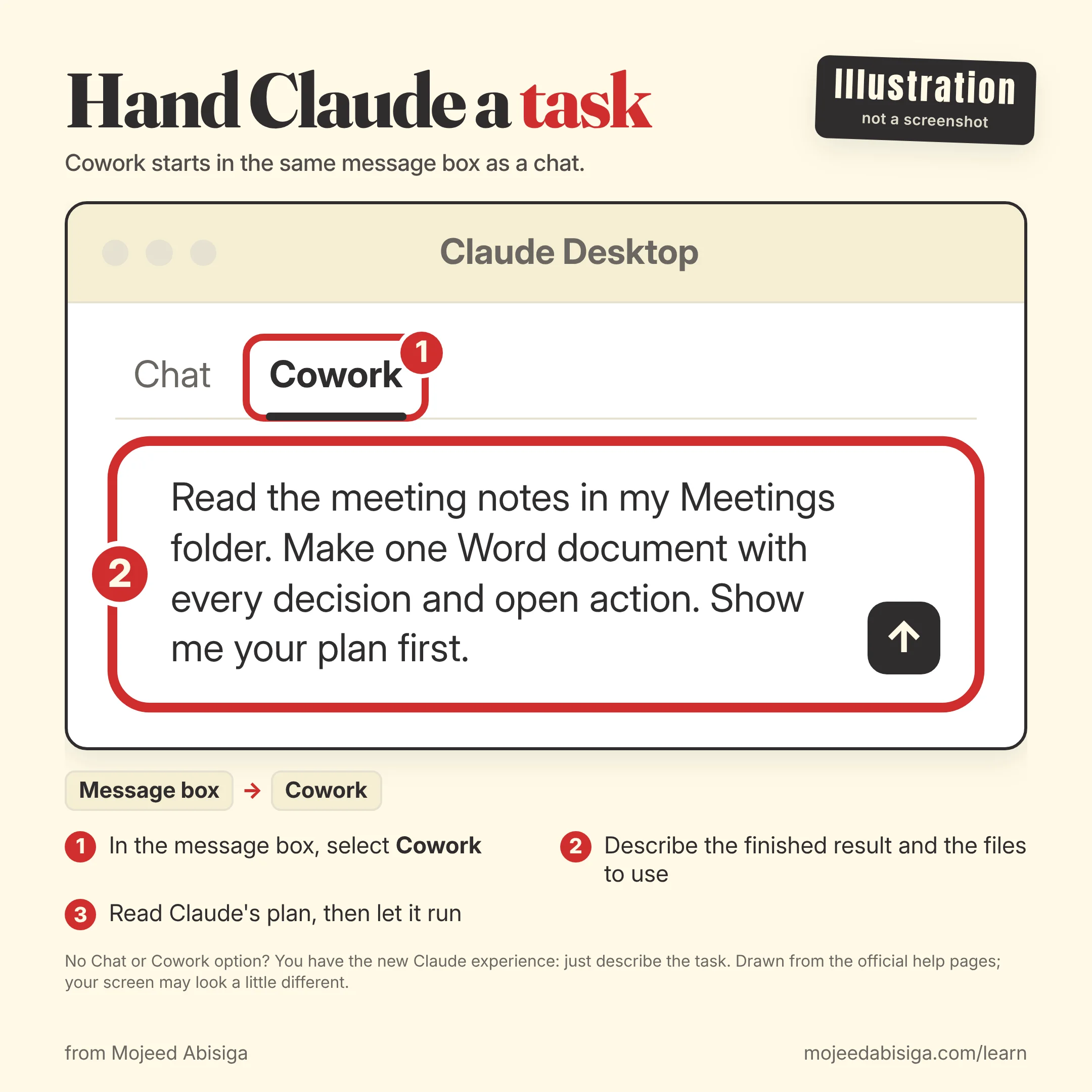
A first prompt to copy:
Read the meeting notes in my Meetings folder. Make one Word document that lists every decision and every open action, grouped by project, with the owner and the date where the notes give them. Where they don't, write [missing]. Show me your plan before you start.What you get back: a plan, then a Word document in your session that you can preview and download. If the plan looks wrong, jump in and correct it mid-task.
The work runs in the cloud, so it carries on if you close your laptop. Tasks that use files on your computer need the Claude Desktop app open.
Once a task works, you can save it as a scheduled task that runs on a schedule or whenever you ask.
Excel: ask your workbook questions
If your work lives in spreadsheets, Claude can work there too.
Claude for Excel is an add-in. It answers questions about your workbook and cites the cells it used. Click a citation and you jump to that cell.
It can change an assumption and keep your formulas intact, track down an error, and build or fill in a model.
When to use it: a model someone else built that you need to understand, an error you can't trace, or a "what if" you'd otherwise rebuild by hand.
Where to find it: it's on Pro, Max, Team and Enterprise plans, in Excel on the web, Excel for Windows with Microsoft 365 (build 16.0.13127.20296 or later) and Excel for Mac (16.46 or later).
- Find the Claude for Microsoft 365 listing on Microsoft AppSource and select Get it now. Anthropic's Excel page links to it.
- Open Excel. On Windows, go to Home → Add-ins. On a Mac, go to Tools → Add-ins. Choose Claude.
- Sign in with your Claude account.
A first prompt to copy:
Explain how the final number on the Summary tab is worked out, from the raw inputs to the result. Point me to each cell along the way, and flag anything that looks wrong. Don't change anything yet.What you get back: a step-by-step answer with cell citations you can click, and anything that looks wrong flagged for you.
Want the same number format or layout each time? Open Settings in the add-in's sidebar and fill in Instructions. They apply in Excel only.
GuideAsk Claude about your data, and trust the answer.Claude will answer any question about your spreadsheet, confidently. Here's how to make sure the answer is right:Where to double-check Claude
A good set-up includes knowing where to double-check.
| Where it falls short | What to do about it |
|---|---|
| It can be confidently wrong. Anthropic calls this hallucination. | Don't use it as your only source. Check cited sources and anything high-stakes. |
| It can claim it did things it can't, like sending an email. | It only has the tools you've connected. Check the result yourself. |
| The newest models' knowledge stops in June 2026. | Use web search (+ → Web search). In the new Claude experience, it searches when that helps. |
| It doesn't make photos or illustrations. | It builds diagrams and charts in code (HTML and SVG). Use an image tool for pictures. |
| It reads images and charts only in PDFs of 100 pages or fewer. | Send the pages that hold the charts as a file of their own. |
| Usage limits: a rolling five-hour window, plus weekly limits on paid plans. | Watch Settings → Usage. Long chats, big files, Research, higher effort and artifacts use it up faster. |
| Web pages and files can hide instructions (prompt injection). | Point Cowork and Claude for Excel only at sources you trust. |
| Claude for Excel doesn't do data tables, macros or VBA. | Keep a person reviewing final client work and audit-critical numbers. |
Known issue: since the September and October 2026 Microsoft 365 updates on Windows, some people are missing chat history and uploaded skills in the Claude add-in.
GuideStop running out of Claude.Hit the limit mid-task? How usage is counted, and twelve habits that make it last:A set-up you can finish in half an hour
The tools work together: instructions shape every chat, projects hold your files, plugins bring skills to chat and Cowork, and Claude for Excel can refine the spreadsheets Cowork builds.
Set them up once, in this order: six blocks of five minutes.
5 minutes: your settings
Open Settings → Capabilities and check that Create and edit files is on.
Then open Settings → Your Claude → Instructions and tell Claude how you work. Your instructions apply to every conversation.
I'm a [your role] at a [type of organisation]. Write in plain English, in short paragraphs. Put the answer first, then the reasons. If you're not sure of a fact, say so instead of guessing.5 minutes: your model
Click the model name next to the send button. Pick Opus 5.5 if your plan has it, or Sonnet on Free. Leave effort on Default.
5 minutes: one project
Make a project for the work you do most. Add the files you always need, and set its instructions.
5 minutes: one artifact
In that project, turn real notes into a doc or a deck. Change one paragraph with Edit with Claude.
5 minutes: one plugin or skill
On a paid plan, open Customize → Plugins → Discover and add the plugin for your role. On Free, ask for a Word file and watch the built-in skill do the work.
5 minutes: one real task
On a paid plan, select Cowork and hand over the task from the Cowork prompt above. If you live in spreadsheets, install Claude for Excel and ask about one workbook instead.
That's the set-up. Thirty minutes, once.
After that, you open Claude knowing which of its tools fits the job in front of you.
New to Claude? Start from day one
Send this to one colleague who only ever uses the chat box.
Mojeed