Newsletter · claude
Hand Claude the mouse.
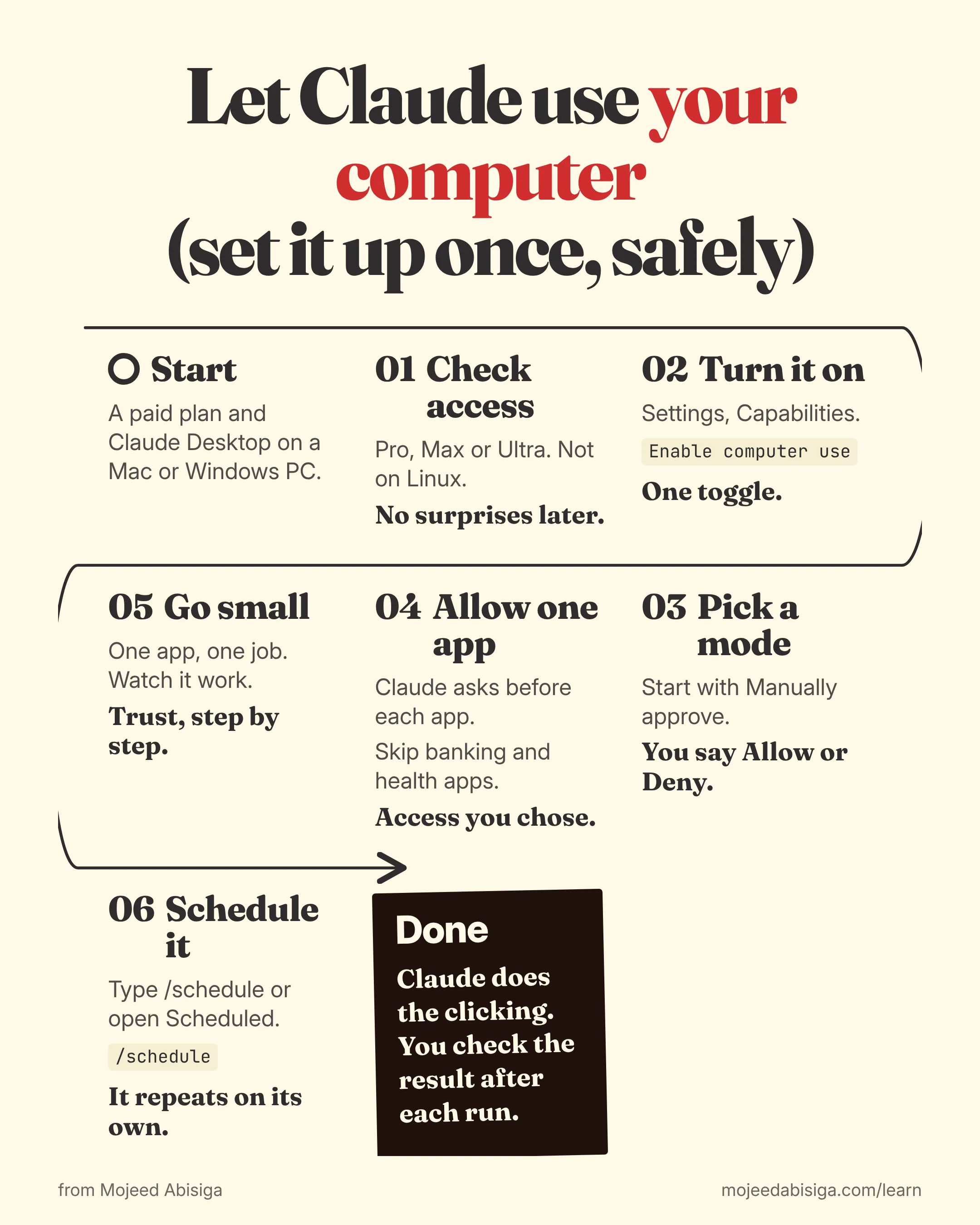
Let Claude click, type and open apps for you, with the safety settings that matter, in six steps:

Some jobs live inside an app.
No connector reaches them. No upload helps.
Someone has to open the app, click, type, copy, paste.
Until now, that someone was you.
Claude can now do it. It can see your screen, click, type and open apps on your computer.
Anthropic calls it computer use.
It's useful. It's also the most powerful thing you can switch on in Claude. So it deserves a careful set-up.
I teach people to use AI at work, and this is the set-up to get right first.
Inside:
- Check you have what it needs
- Switch it on
- Choose how much Claude asks first
- Allow apps one at a time
- Run a small first task
- Put a task on a schedule
Plus five everyday jobs with prompts you can copy.
Get the next one in your inbox
One practical guide at a time: the exact steps, the prompts to copy and the mistakes to skip.
Free. Delivered by Substack, one click to unsubscribe. Form not showing? Subscribe on Substack.
Why let Claude click for you
Claude always reaches for the most precise tool first.
If a connector can do the job, it uses the connector. If not, the browser. Only then does it work on your screen directly.
So computer use is the fallback for everything else: the desktop app with no connector, the old system nobody built a link to, the file that only opens in one program.
That's what it saves you. The clicking between apps.
Two honest limits before you start:
- Working on the screen is slower than a connector.
- Complex tasks sometimes need a second try.
Good to know before you judge it on day one.
Step 1: Check you have what it needs
Computer use runs through Claude Desktop, the app you install on your computer.
Here's what the help pages say you need:
| What you need | |
|---|---|
| Plan | Pro, Max or Ultra. On Team and Enterprise it's a beta that an owner must turn on first. |
| Computer | A Mac (computer use needs macOS 14 or later) or a Windows PC (Windows 10 or higher). |
| Not supported | Linux. Computer use isn't available there. |
| While it works | Your computer awake, Claude Desktop open, and an internet connection. |
Pro is $20 a month, or $17 a month if you pay yearly.
No Claude Desktop yet? Get it from claude.com/download.
On Team and Enterprise, there's one more catch. Computer use works only in the new Claude experience. It doesn't work in tasks started with the "Cowork" option, or in Claude Code.
How do you know you have the new experience? Your message box no longer shows "Chat" and "Cowork".
Step 2: Switch it on
It's one switch.
- Open Claude Desktop.
- Go to Settings → Capabilities. (On some versions it's Settings → System, under "This computer".)
- Turn on Enable computer use.
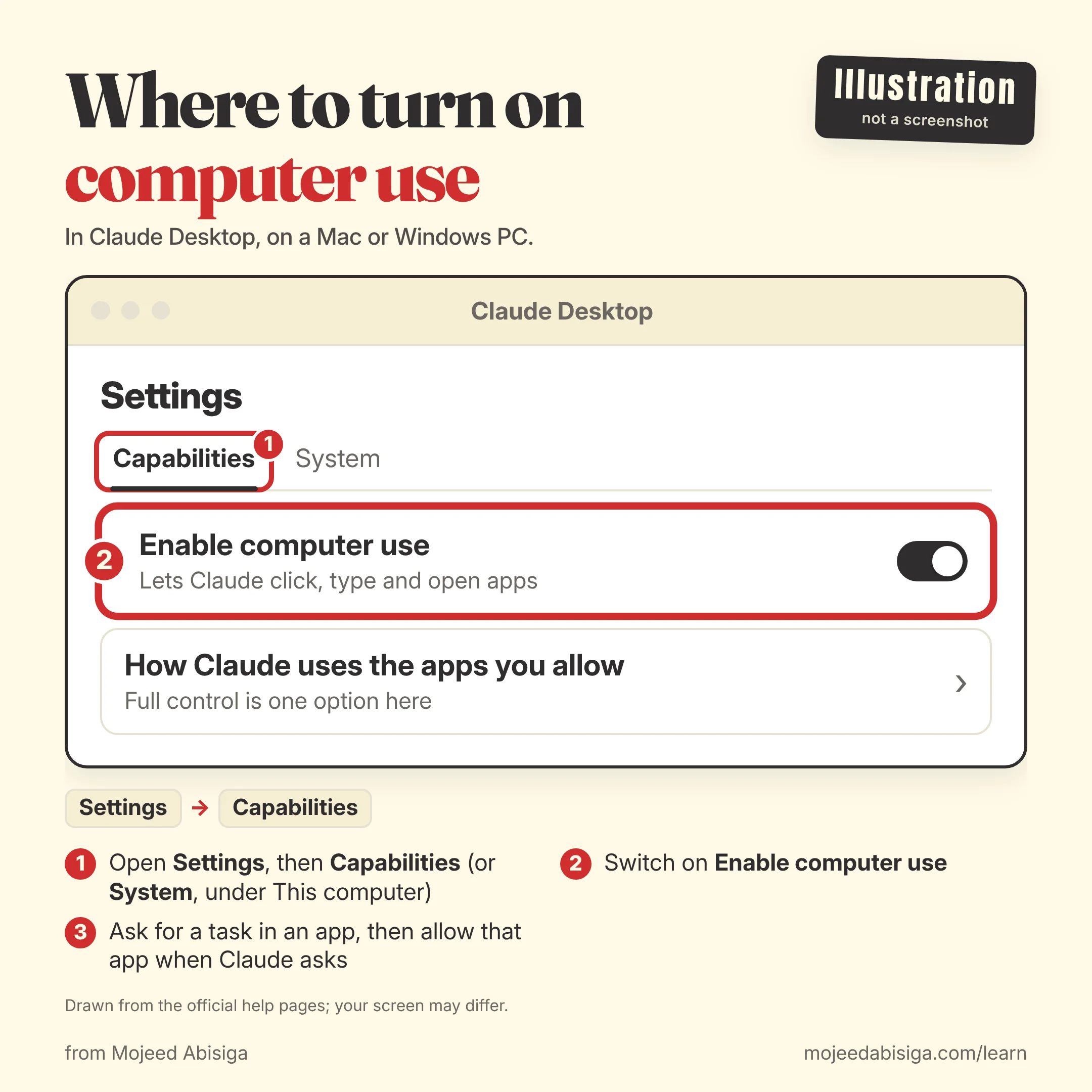
That's it for the switch.
Nothing happens yet. Claude only asks for an app when you give it a task that needs one.
On a Mac
Claude also needs two macOS permissions: Accessibility and Screen & System Audio Recording.
If Claude can't see or click anything, check both are on.
Background or full control
On macOS 15 or later, Claude works in background windows by default. It doesn't take over your pointer, so you can keep working.
If you'd rather it drives the pointer, look for How Claude uses the apps you allow and choose Full control.
Start with the default.
Step 3: Choose how much Claude asks first
Every task has an approval mode. It decides how often Claude stops to check with you.
| Mode | What happens | Use it when |
|---|---|---|
| Manually approve | Claude pauses and you click Allow or Deny | You're new to this, or the task touches anything sensitive |
| Automatically approve | Claude keeps going, but each action is checked for safety and unsafe ones are blocked | Routine work you've already watched it do |
| Skip all approvals | Nothing checks Claude's actions | Only when you fully trust every app, file and connector involved |
The older names were "Ask before acting" and "Act without asking", in case you see those.
Anthropic is clear that the automatic check can miss risky actions.
For anything involving money, messages sent as you or important files, stay close or switch to Manually approve.
Step 4: Allow apps one at a time
Claude asks your permission before it touches each app.
Once you say yes, it can keep using that app for the rest of that session without asking again.
Not every app gets the same access:
| Kind of app | What Claude can do |
|---|---|
| Browsers, and many investment, trading and crypto apps | Look only |
| Terminals and code editors | Click and scroll, but not type |
| Most other apps | Full access |
| Music, video streaming and e-book apps | Nothing: they're off limits |
You can also block apps yourself. Claude's requests for a blocked app are denied automatically.
What not to allow
Anthropic recommends you don't give computer use access to sensitive apps: banking, healthcare, government.
Treat that as a hard rule, not a suggestion.
Two things that surprise people
It can reach beyond your folders. In Cowork, Claude normally works only in the folders you connect. Computer use isn't limited that way.
Links can open other apps. If Claude clicks a link inside an app you approved, that can open another app, Chrome for example, even though you never approved Chrome.
Both are good reasons to start small.
NewsletterCheck a skill before you trust it.A Claude skill can run code on your behalf. Here's what can go wrong, and the five-minute check to run first:Step 5: Run a small first task
Pick one app. One small job. Something you could check in a minute.
Use Manually approve, and watch.
If you have the "Cowork" option in your message box, select it first. If you have the new Claude experience, just type the task into any conversation.
Open [app name] on my computer.

Find [the item, e.g. last week's report] and tell me
[what you want to know, e.g. the total in the last row].

Rules:
- Only use [app name]. Ask me before opening anything else.
- Don't change, move, send or delete anything.
- If you get stuck, stop and tell me what you see.
Claude will ask to use the app. Allow it.
Then follow along. Read each step before you click Allow.
How to know it worked
You get the answer you asked for, and nothing else changed.
If it took a wrong turn, say so plainly and ask it to try again. A second try is normal for this kind of work.
What to watch for
You don't need to check every click.
Anthropic's advice is to watch for patterns you didn't expect: files or sites you never mentioned, a task quietly getting bigger.
If something feels off, stop the task.
Five everyday jobs to hand over
Once the small task goes well, try real work.
Each prompt below keeps Claude to one app and tells it where to stop. Swap the brackets for your own details.
1. Copy numbers out of an app with no connector
Open [app name] and go to [screen or report name].

Copy [the figures, e.g. this month's totals by region]
into a new Excel spreadsheet with clear column headings
and a total row that uses working formulas.

Save it in my [folder name] folder as [file name].
Don't change anything in [app name].
Cowork can make Excel files with working formulas, so the result is ready to use.
2. Fill in a form from a document
Open [document name] in my [folder name] folder.

Then open [app name] and fill in the [form name] form
using the details from that document.

Stop before you submit. Show me what you filled in
so I can check it and submit it myself.
The last line matters. You stay the one who presses send.
3. Turn notes from an app into a document
Open [notes app] and find my notes titled [title].

Turn them into a one-page summary document:
- three key points at the top
- decisions made
- actions, with who and by when

Save it to my [folder name] folder. Don't edit the notes.
4. Tidy a working folder (carefully)
Open my [folder name] folder.

Sort the files into subfolders by [type / month / client].
Make a list of every file you moved and where it went.

Never delete or rename a file. If you're unsure where
something belongs, leave it and add it to the list.
Remember: deletion protection doesn't cover computer use. The "never delete" rule in the prompt is your seat belt. A backup is your airbag.
5. Build slides from what's on screen
Open [app name] and look at [report or screen name].

Make a five-slide PowerPoint presentation for
[audience] that explains [what the numbers show].
One idea per slide, short titles, no more than
three bullets each.

Save it to my [folder name] folder.
Then check the numbers against the app yourself before it goes anywhere.
Understand Claude's usage limits
Step 6: Put a task on a schedule
Some jobs come round every week. Claude can run them for you.
Scheduled tasks are on every paid plan, in Cowork and in the new Claude experience.
The quick way
Type /schedule in any Cowork task.
Or, in the new Claude experience, describe the task and how often it should run in any conversation. Claude proposes a schedule. Review it, then click Schedule.
From the Scheduled page
- Click Scheduled in the left sidebar.
- Click New task.
- Pick Create with Claude. Claude asks you a few questions. Then click Schedule.
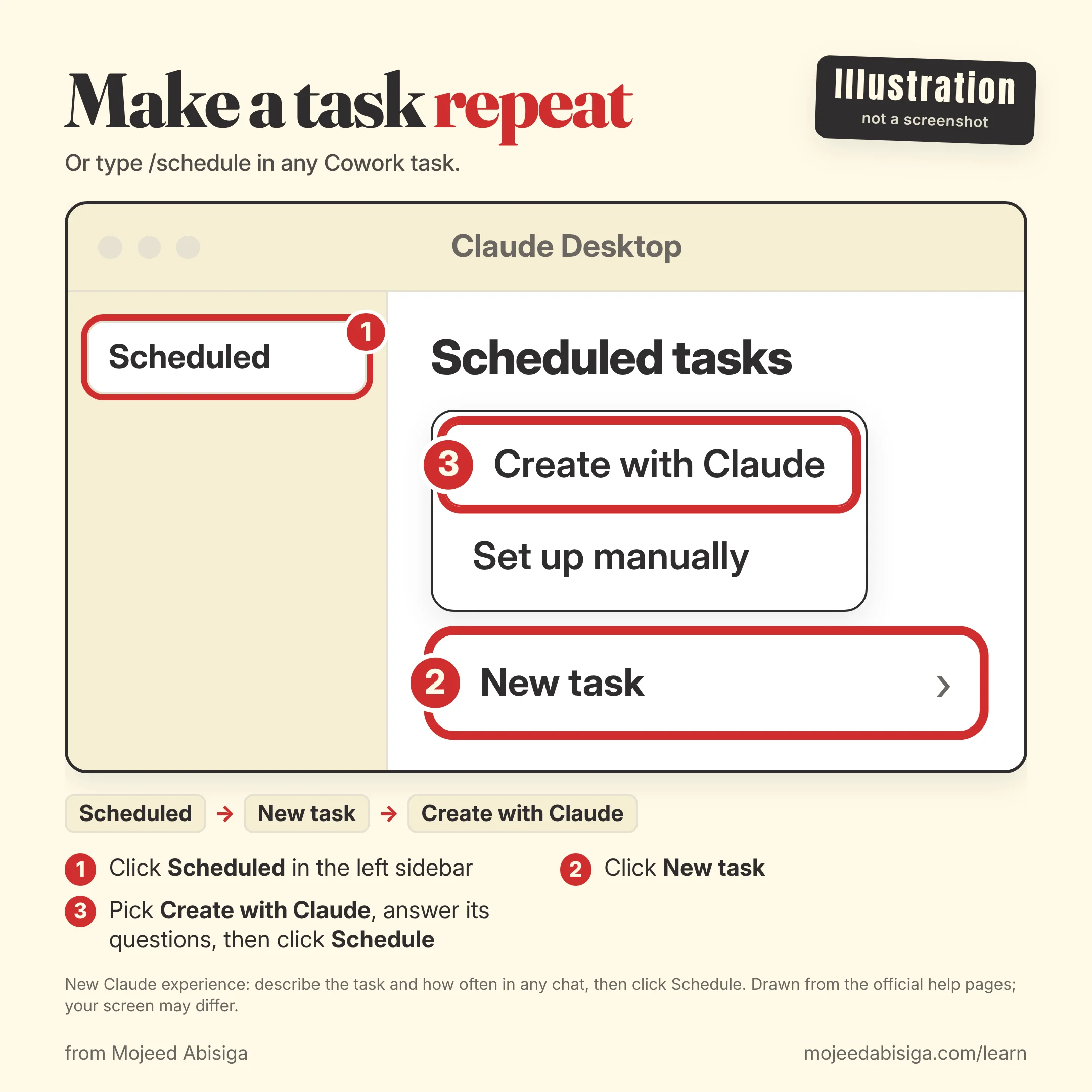
Prefer to fill it in yourself? Pick Set up manually. You'll give it:
- a task name
- the prompt
- an approval mode
- how often: hourly, daily, weekly, on weekdays, or manually
- a model and a folder, if you want them
The catch with computer use
Scheduled tasks normally run remotely, even when your computer is asleep.
But computer use needs your computer awake and Claude Desktop open. The same goes for any task you give a folder: picking one switches on Require this computer.
So schedule screen-based jobs for a time your computer is on.
Every Monday at 9am:

Open [app name] and go to [report name].
Copy last week's figures into my [file name] spreadsheet
in the [folder name] folder, as a new row.

Then write me three lines: what went up, what went down,
and anything that looks unusual.

Don't send, delete or submit anything.
Keep scheduled tasks safe
Anthropic's advice for scheduled tasks:
- Start simple.
- Keep sensitive data and hard-to-undo actions out of them.
- Review the output after each run.
- Pause tasks you're not using.
From the Scheduled page you can see past and upcoming runs, edit the prompt, cadence or approval mode, pause, resume, delete, or run a task right now.
And remember: you stay responsible for what Claude does on your behalf. That includes scheduled runs and anything it does on your screen.
GuideSet up Cowork once.Already tried Cowork? Set it up properly in one sitting, and stop babysitting it:If something looks different
Claude's menus are changing as the new Claude experience rolls out. If your screen doesn't match:
- No "Enable computer use" under Capabilities? Try Settings → System, under "This computer".
- No "Cowork" option in the message box? You have the new Claude experience. Type the task into any conversation.
- On Team or Enterprise and it's not there? An owner has to turn computer use on first, and it works only in the new Claude experience.
- On Linux? Computer use isn't available there.
- Claude can't see or click on a Mac? Check it has the Accessibility and Screen & System Audio Recording permissions.
- A task stopped halfway? Check your computer didn't sleep and Claude Desktop is still open.
The official help page has the latest: Let Claude use your computer. For safety, read Use Claude Cowork safely. For schedules, Schedule recurring tasks.
What to do today
Turn on Enable computer use.
Set your first task to Manually approve.
Pick one app you open every day. Not your bank.
Give Claude one small job in it, using the first prompt above. Watch every step.
When it's done right twice, schedule it.
Send this to one colleague who spends their morning copying numbers between apps.
Mojeed