Guides · Claude
Set up Cowork once.
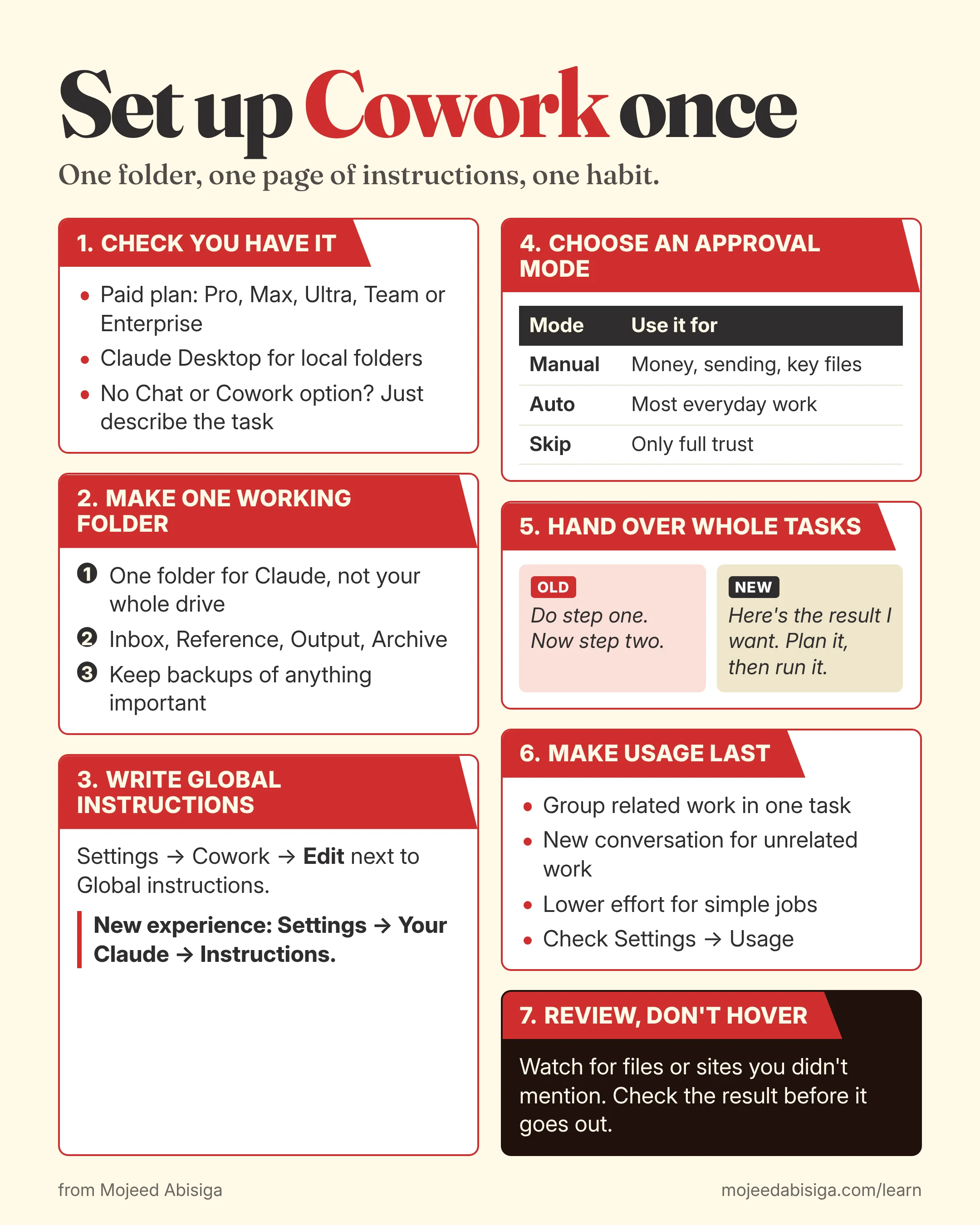
Already tried Cowork? Set it up properly in one sitting, and stop babysitting it:

Contents
You've tried Cowork a few times.
It did something useful. Then it asked you a lot of questions, saved files in odd places, and ate a chunk of your usage.
Cowork works fine. It just hasn't been set up yet.
I teach people to use AI at work, and my mission is to make data and AI easy for everyone. This guide is the set-up I'd want every professional to do once.
It takes about 20 minutes. You won't have to do it again.
By the end of this guide you'll have:
- one working folder Claude can use, laid out so you always know where things are
- global instructions, written from a template, that every session reads
- an approval mode that fits the work you do
- a way of handing over whole tasks, so you review instead of steering every step
- a few habits that make your usage allowance last
- one real task done, in your first 20 minutes
You need:
- a paid Claude plan: Pro, Max, Ultra, Team or Enterprise (Cowork isn't on Free)
- Claude Desktop on your computer, if you want Claude to work with your own files
- one small, real job you'd happily hand to a capable colleague
New to Cowork? Start with Cowork, from zero and come back here.
Get the next one in your inbox
One practical guide at a time: the exact steps, the prompts to copy and the mistakes to skip.
Free. Delivered by Substack, one click to unsubscribe. Form not showing? Subscribe on Substack.
Why the set-up matters
Cowork isn't a chat that answers one prompt at a time.
Anthropic describes it as bringing Claude Code's agentic abilities to knowledge work beyond coding. It takes on multi-step tasks.
The way it's meant to work is simple: you describe an outcome, step away, and come back to finished work.
When a task starts, Claude makes a plan, breaks the work into smaller tasks, runs them in an isolated environment on Anthropic's servers, may run some of them in parallel, and hands you the results.
It can make Excel spreadsheets with working formulas, PowerPoint presentations and formatted documents.
So the quality of what you get depends on three things you control:
- what Claude can reach (your folder)
- what Claude knows about you (your instructions)
- how you hand the work over (whole tasks, clear finish line)
Get those right once, and every task after that starts from a better place.
1. Check what you have
First, find out which version of Claude you're on. It changes a few menu names in this guide.
Open Claude and look at the message box.
- You see 'Chat' and 'Cowork' options. Select Cowork, describe the task, read Claude's approach and let it run.
- You don't see them. You have the new Claude experience. Chat and Cowork are one conversation, with no mode to pick. Just describe the task.
Both are fine. Where a menu differs, I'll give you both paths.
Install Claude Desktop
Cowork runs in the cloud. Your sessions and files are saved to your Claude account, so work carries on if you close your laptop.
But Claude can only read and write the files on your computer through Claude Desktop. Download it from claude.com/download.
Keep two rules in mind:
- a task that uses your local files needs the desktop app open on that computer
- a task that doesn't touch your files keeps running when the app is closed or the computer is asleep
Check it worked: open Claude Desktop, sign in, and start a new conversation. If you see the 'Cowork' option or an empty message box ready for a task, you're set.
GuideCowork, from zero.You don't code? Good. Here's how to hand Claude real work, step by step:2. Make one working folder
This is the step most people skip. It's also the one that saves the most time.
Anthropic's own advice is to create a dedicated working folder for Claude instead of giving it broad access to your computer. And to keep backups of important files.
Claude can only read and write in folders you've connected. So one tidy folder means Claude always knows where to look, and you always know where to find the result.
A layout that works
Make one folder called Claude work (or any name you like). Inside it, make four folders:
| Folder | What goes in | Who writes in it |
|---|---|---|
| Inbox | Files you want Claude to work on this week | You |
| Reference | Things Claude should read but never change: templates, style notes, past examples | You |
| Output | Everything Claude makes | Claude |
| Archive | Finished work you want to keep | You |
Then connect only the Claude work folder.
Why this layout:
- Inbox and Output are separate, so Claude never overwrites the files you gave it
- Reference holds your examples, so you can say "match the format in Reference" instead of explaining it again
- Archive keeps Output short, so Claude isn't reading old work by mistake
What Claude can and can't do with it
- Your folders stay on your computer. When a cloud task needs a file, Claude fetches a copy of just that file. Those copies are deleted when you delete the session.
- Claude must ask you with an Allow prompt before it permanently deletes any file.
- Claude reads single files up to 50 MB.
- In the new Claude experience, Settings shows where Cowork saved its work as Storage folder, and the folders you gave it as Trusted folders.
Let Claude build it for you
Connect an empty folder, then paste this.
In the folder I've connected, create four folders: Inbox, Reference, Output and Archive.

Then add a short file called README.md in the main folder that explains, in plain words:
- Inbox: files I want you to work on
- Reference: files you read but never change
- Output: where you save everything you make
- Archive: finished work I keep

From now on, save everything you make in Output, and never change or delete anything in Reference.
Show me the folder list when you're done.
Check it worked: open the folder on your computer. You should see the four folders and the README file.
3. Tell Claude how you work
Global instructions are standing instructions that apply to every Cowork session.
Anthropic suggests three things to put in them: your tone, your output format, and background on your role.
Write them once. Every task starts already knowing who you are and how you like things.
Where to put them
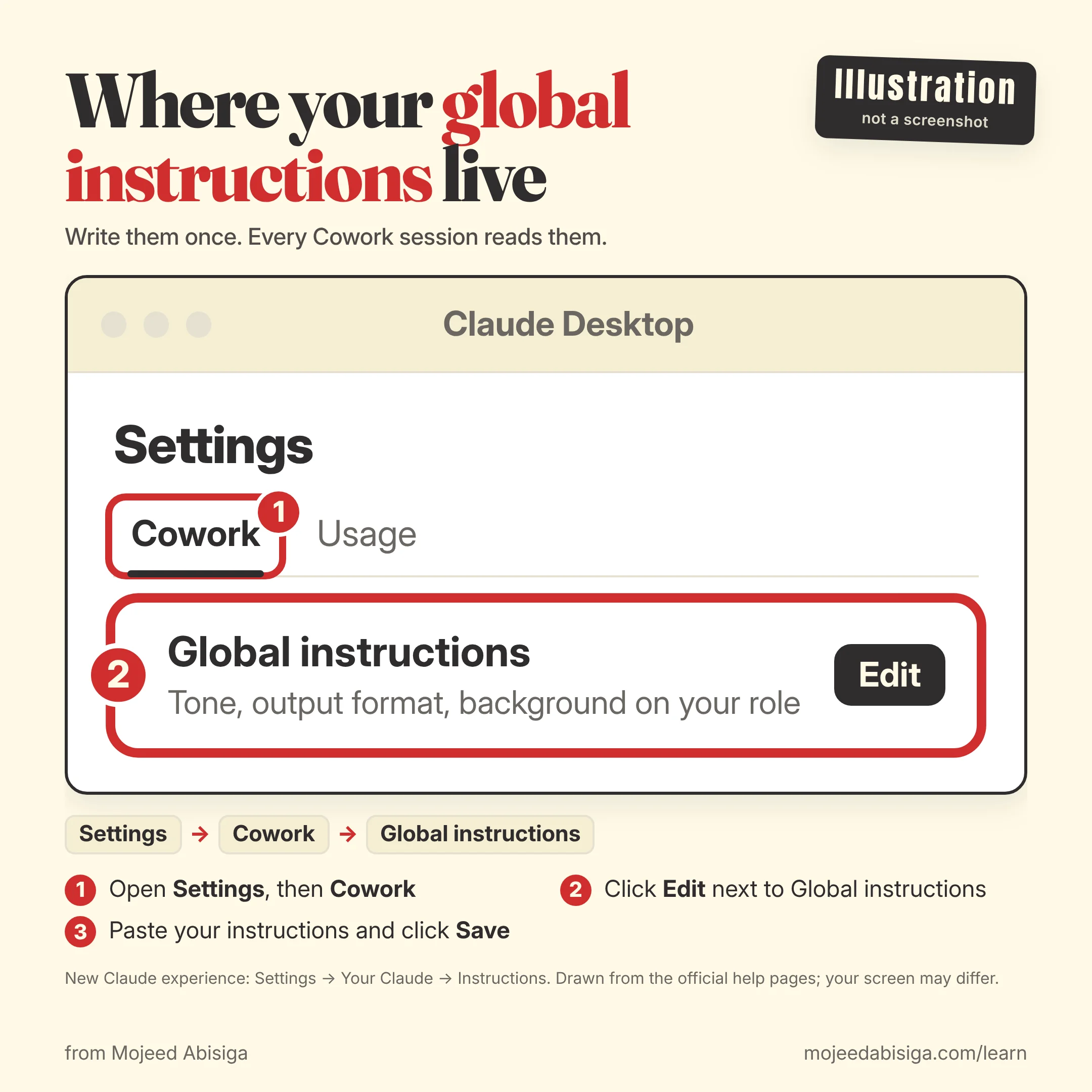
- With 'Chat' and 'Cowork' options: open Settings → Cowork, click Edit next to Global instructions, paste them in and click Save.
- In the new Claude experience: Cowork's global instructions became part of the instructions for Claude, in Settings → Your Claude → Instructions (Settings → Account in the older layout). They apply to every conversation, chat and task alike.
The template
Copy this, fill in the brackets, and delete any line that doesn't fit you.
About me
- I work as [your role] at [type of organisation]. My work is mostly [three main kinds of work].
- My readers are usually [who reads what I make: my manager, clients, the board, students].

How to work
- Before a task with more than three steps, show me a short plan and wait for my go-ahead.
- If something is unclear, ask me up to three questions at the start, then work without stopping.
- Use only the files I point you to. If you need something else, ask.
- Never send, post, buy or delete anything without asking me first.

Files
- My working folder has Inbox, Reference and Output folders.
- Read from Inbox and Reference. Save everything you make in Output.
- Name files like this: [YYYY-MM-DD] [short topic] [v1].
- Never change anything in Reference.

How to write
- Plain English, short sentences, no jargon.
- Put the answer or recommendation first, then the detail.
- Use [British or American] spelling.
- Documents: Word. Numbers: Excel with working formulas. Slides: PowerPoint.

When you finish
- Tell me in five lines or fewer: what you made, where you saved it, and anything you weren't sure about.
- Flag any number, name or fact I should check before I share the work.
Keep it short. A page you'd hand a new colleague on day one is about right.
Let Claude draft them with you
Not sure what to write? Let Claude ask.
I want to write global instructions for Cowork: standing instructions you'll read at the start of every task.

Interview me. Ask me one question at a time, no more than eight in total, about:
my role, who reads my work, the file types I use, how I like things written, what you should never do without asking, and how you should report back when you finish.

Then write my global instructions as a short list under these headings:
About me, How to work, Files, How to write, When you finish.
Keep the whole thing to one page.
Folder instructions are separate
When you select a local folder on desktop, Cowork can also use folder instructions: context for that folder only. Claude can update them itself during a session.
Since Claude Desktop v5.1231.0 (10 November 2026), the edits Claude makes there no longer change your global instructions. Your global page stays exactly as you wrote it.
Check it worked: start a new task and ask, "In three lines, what do you know about how I like to work?" The answer should echo your instructions.
4. Choose an approval mode
The approval mode decides how often Claude stops to ask you before it acts.
There are three:
| Mode | What happens | Use it when |
|---|---|---|
| Manually approve (Manual) | Claude pauses for Allow or Deny on actions | The task touches money, messages sent as you, sensitive accounts or files that matter, or you're trying a new tool, plugin or site |
| Automatically approve (Auto) | Claude keeps working and checks each action for safety, blocking unsafe ones. If it's blocked again and again, it goes back to asking | Most everyday work in your own working folder |
| Skip all approvals (Skip) | Nothing checks Claude's actions | Only when you completely trust every action, connector, file and app involved |
Older names you may still see: Manual used to be called 'Ask before acting', and Skip used to be 'Act without asking'.
In the new Claude experience, Auto is rolling out as the default on Pro, Max, Ultra and Team. Manual is the default on Enterprise.
My suggestion: Auto for everyday work in your working folder, Manual for anything you'd struggle to undo.
Want the full safety picture? Read Anthropic's page on using Cowork safely.
NewsletterHand Claude the mouse.Let Claude click, type and open apps for you, with the safety settings that matter, in six steps:5. Hand over whole tasks
Here's the honest truth about Cowork.
The bottleneck is usually you.
Chat taught all of us a habit: one small prompt, read the answer, one more small prompt.
In Cowork, that habit wastes the thing it's best at. Claude can plan, split the work, run parts of it in parallel and keep going while you do something else. It can't do any of that if you hand it one step at a time.
Micromanaging vs handing over
| Steering every step | Handing over the task |
|---|---|
| "Open the sales file." | "Here's the result I want, the files to use and where to save it." |
| "Now make a chart." | "Plan it, show me the plan, then run it." |
| "Now put it in a document." | "Tell me what you weren't sure about." |
| You watch every action | You check the finished work |
| Many short turns | One task, one result |
The whole-task brief
Every good handover answers five questions: what finished looks like, what to use, the rules, where to save it, and how to report back.
Task: [the outcome in one sentence, e.g. "a two-page summary of last month's customer feedback for my manager"].

Use: the files in Inbox called [names]. Use Reference/[file] as the format to match.

Finished looks like:
- [file type, e.g. a Word document]
- [length or shape, e.g. two pages, a table of the top five issues, three recommendations]
- [who it's for and what they need to decide]

Rules:
- [anything to avoid, e.g. no customer names]
- If you hit a real decision, note your choice and carry on. Don't stop to ask.

Save it in Output as [file name].
When you're done, tell me in five lines: what you made, the choices you made, and what I should check.
Then step away. Really.
Review instead of micromanaging
You don't need to read every command Claude runs.
Anthropic's own advice is to watch for patterns instead: files or sites you didn't mention, or a task quietly growing bigger than you asked. If something feels off, stop the task.
When it's done, review the result like a manager would:
Before I share this, check your own work.
1. List every number, name, date and claim in the document, and the file it came from.
2. Mark anything you inferred rather than read.
3. Tell me the three places a careful reader is most likely to push back.
Don't change the document yet. Just give me the list.
Claude can still get facts wrong. Anthropic's advice is to check high-stakes work and the sources it cites. That check is your job, and it's a much better use of your time than steering.
For more on writing a brief Claude can run with, read Brief Claude like a colleague.
GuideBrief Claude like a new colleague.Short prompts get average answers. A two-minute brief gets the finished thing, first time:6. Make your usage allowance last
Cowork uses more of your allowance than a quick chat.
Every step of a multi-step task uses tokens: running code, creating files, using connected apps and the browser. Anthropic's product page says Cowork uses more of your rate limit because it coordinates several sub-agents and tool calls.
No official page says how much more. So the smart move is to spend it on purpose.
How the allowance works
- Chat, Claude Code, Claude Desktop and Cowork all draw on the same usage limit.
- Paid plans have a five-hour session limit and weekly limits.
- The five-hour window starts with your first message and resets in full five hours later.
- Weekly limits reset at a fixed day and time set for your account.
Six habits that save usage
- Group related work into one task. One task that reads three files and makes one report beats three separate tasks.
- Start a new conversation for unrelated work. Long conversations cost more, and when one gets near its limit, Claude summarises the earlier part automatically, which uses more of your allowance too.
- Say when you only need a quick answer. "Quick answer, no files" stops Claude from building something you didn't ask for.
- Match the effort to the job. Effort runs from Low, Medium, High and Extra high to Max. The default in the Claude apps is Medium. Higher effort takes longer and uses more of your limits, so keep it for work that needs careful judgment.
- Match the model to the job. Click the model name next to the send button. Anthropic positions Sonnet 5.5 for well-scoped everyday work and polished documents, slides and spreadsheets, Opus 5.5 for complex work that needs careful judgment, and Haiku 5.5 for high-volume work.
- Reuse the same material in a project. Project content is cached and counts less against your limits when it's reused. See Cowork projects.
Attachment size, long messages, web search and Research all use limits faster too. Your Reference folder helps here: point Claude at one example, not ten.
Check before a big task
Open Settings → Usage. You'll see a bar for your current five-hour session and your weekly limits.
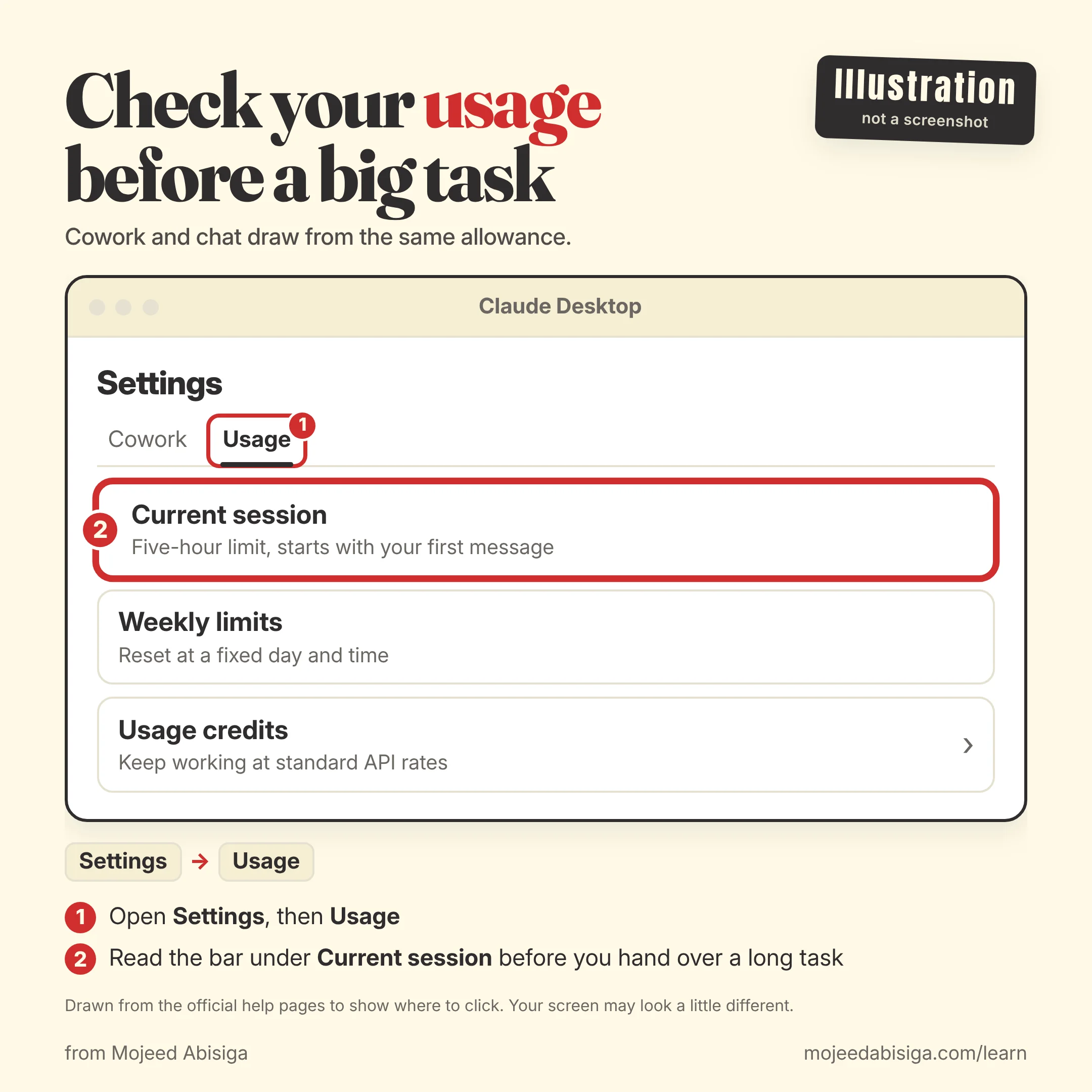
If you hit a limit, you can wait for the reset, upgrade, or on Pro, Max and Ultra turn on usage credits in Settings → Usage to keep working at standard API rates, with a monthly spend limit you choose.
Anthropic's usage limit best practices page has the full list.
GuideStop running out of Claude.Hit the limit mid-task? How usage is counted, and twelve habits that make it last:7. The 20-minute run-through
Here's the whole set-up, in order. Set a timer if it helps.
Minutes 0 to 5: the folder
- Install or open Claude Desktop.
- Make the Claude work folder and connect it.
- Run the "Set up my working folder" prompt.
- Drop one or two real files into Inbox and one good example into Reference.
Minutes 5 to 12: the instructions
- Run the "Draft my global instructions" prompt, or fill in the template.
- Paste the result into Settings → Cowork → Global instructions (or Settings → Your Claude → Instructions) and save.
Minutes 12 to 14: the mode and the meter
- Check your approval mode. Auto for everyday work, Manual for anything hard to undo.
- Glance at Settings → Usage so you know where you stand.
Minutes 14 to 20: the first real task
Pick something small, real and useful. Then hand it over whole.
Read the files in Inbox.
Make one Word document that summarises them for [who it's for]: the five most important points, any decisions or open questions, and a suggested next step for each.
Match the format of the example in Reference.
Show me your plan first, then run it without stopping.
Save it in Output and tell me in five lines what you made and what I should check.
While it runs, do something else. Come back, review it with the "Review before I use it" prompt, and fix what needs fixing.
That's it. You're set up.
Know someone who keeps telling you Cowork "asks too many questions"? Send them this guide.
Your set-up checklist
- I'm on a paid plan and have Claude Desktop installed
- I have one Claude work folder with Inbox, Reference, Output and Archive
- I connected only that folder, and I keep backups of important files
- My global instructions are saved, and a test task echoes them back
- I've picked my approval mode, and I know when to switch to Manual
- I hand over whole tasks with a clear finish line
- I review the result instead of watching every step
- I know where Settings → Usage is, and I check it before a big task
- I've finished one real task
Questions
Can I use Cowork on the Free plan?
No. Cowork is on paid plans only: Pro, Max, Ultra, Team and Enterprise.
Does a task keep running if I close my laptop?
Yes, as long as it doesn't need your local files. Tasks run on Anthropic's servers. A task that reads or writes your files needs Claude Desktop open on that computer.
Can Claude delete my files?
Not without asking. Claude must get your permission through an Allow prompt before it permanently deletes any file. Keep backups of anything important anyway.
Can I share a Cowork session with a colleague?
Not the session itself. You can share individual artifacts Claude makes.
How long can my instructions be?
Anthropic doesn't publish one. Keep them to about a page so they stay easy to update.
What's next after the set-up?
Group related work into projects, and put the jobs you repeat on a schedule: type /schedule in a task, or click Scheduled in the left sidebar. Start simple and review each run.
What to do today
- Make the folder.
- Save your global instructions.
- Hand over one whole task, and review it instead of watching it.
The first task is the one that changes how you use Cowork.
NewsletterClaude is a toolkit.Six tools in one app, and how to set each one up:Set it up once, then let it work. Mojeed